
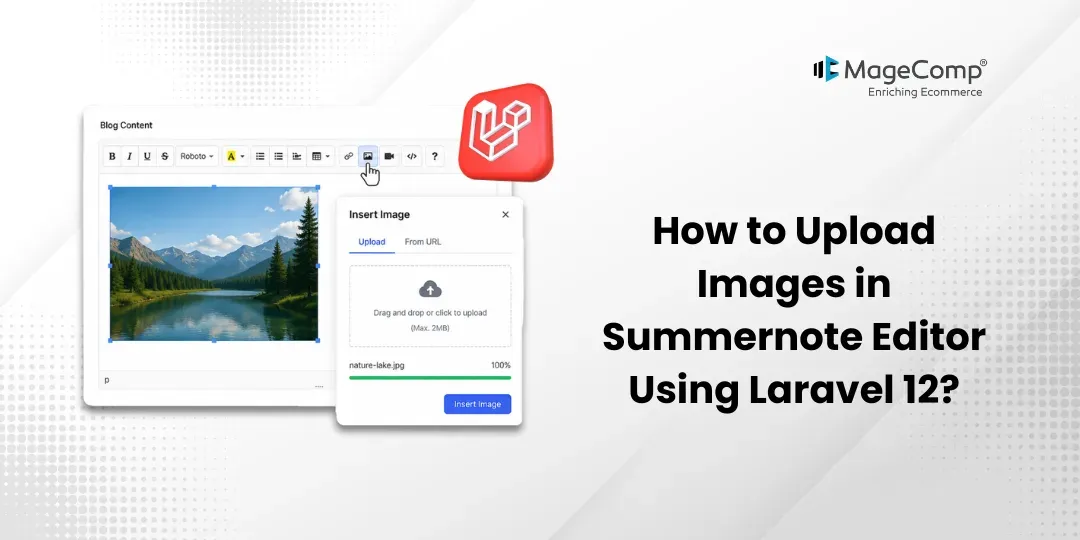
In the tutorial provided here, you will see how to add Summernote (a WYSIWYG editor) along with image upload capabilities in Laravel 12.
The goal is to have users create rich text posts as well as upload images directly through Summernote. We will go through the entire process of creating an actual blog module. This includes the migration for creating a posts database, posts table, posts model, posts controller, routes required for managing the posts, and displaying the uploaded images in the Summernote. This is step-by-step, using very simple examples so even beginners will be able to implement, but flexible enough for advanced users as well.

Steps to Upload Images in Summernote Editor Using Laravel 12:
Step 1: Install Laravel 12
If you don’t have your own Laravel app created, you can run the command below:
composer create-project laravel/laravel example-appStep 2: Create the Posts Table and Model
In this step, we need to create a new migration to add a “posts” table.
php artisan make:migration create_posts_tabledatabase/migrations/2024_02_17_133331_create_posts_table.php
<?php

use Illuminate\Database\Migrations\Migration;
use Illuminate\Database\Schema\Blueprint;
use Illuminate\Support\Facades\Schema;

return new class extends Migration
{
   /**
   * Run the migrations.
   *
   * @return void
   */
   public function up(): void
   {
       Schema::create('posts', function (Blueprint $table) {
            $table->id();
            $table->string('title');
            $table->text('body');
            $table->timestamps();
        });
   }

  **
  * Reverse the migrations.
  *
  * @return void
  */
  public function down(): void
  {
     Schema::dropIfExists('posts');
  }
};
Now, let’s run the migration command:
php artisan migrateNow we need to create the Post Model and add the following code:
app/Models/Post.php
<?php
namespace App\Models;
use Illuminate\Database\Eloquent\Factories\HasFactory;
use Illuminate\Database\Eloquent\Model;
use Illuminate\Database\Eloquent\Casts\Attribute;

class Post extends Model
{
   use HasFactory;

   /**
   * Write code on Method
   *
   * @return response()
   */

   protected $fillable = ['title', 'body'];

   /**
   * Get the user's first name.
   */

   protected function body(): Attribute
   {
         return Attribute::make(
            set: fn (string $value) => $this->makeBodyContent($value),
            );
        }

   	/**
     	* Write code on Method
     	*
     	* @return response()
     	*/

        public function makeBodyContent($content)
    	{
        	$dom = new \DomDocument();
       		$dom->loadHtml($content, LIBXML_HTML_NOIMPLIED | 			                            LIBXML_HTML_NODEFDTD);
        	$imageFile = $dom->getElementsByTagName('img');

       		foreach($imageFile as $item => $image){
            		$data = $image->getAttribute('src');
            		list($type, $data) = explode(';', $data);
           		list(, $data) = explode(',', $data);
            		$imgeData = base64_decode($data);
            		$image_name= "/uploads/" . time().$item.'.png';
            		$path = public_path() . $image_name;
            		file_put_contents($path, $imgeData);
            		$image->removeAttribute('src');
            		$image->setAttribute('src', $image_name);
        	}

        	return $dom->saveHTML();
    	}
}
Step 3: Create the Routes
In this step, we need to create some routes for listing posts and creating posts.
routes/web.php
<?php

use Illuminate\Support\Facades\Route;
use App\Http\Controllers\PostController;
Route::get('posts/create',[PostController::class,'create']);
Route::post('posts/store',[PostController::class,'store'])->name('posts.store');
Step 4: Create Controller
In this step, we will create a new PostController where we will be writing the image upload code to process and upload the images to our public/uploads directory. All of your code will be added to the PostController.
app/Http/Controllers/PostController.php
<?php
namespace App\Http\Controllers
use Illuminate\Http\Request;
use App\Models\Post;
use Illuminate\View\View;
use Illuminate\Http\RedirectResponse;

class PostController extends Controller
{
   	/**
     	* Write code on Method
     	*
     	* @return response()
     	*/

    	public function create(): View
    	{
       		return view('postsCreate');
    	}

   	/**
     	* Write code on Method
     	*
    	* @return response()
     	*/

   	public function store(Request $request): RedirectResponse
    	{
        	$this->validate($request, [
            		'title' => 'required',
            		'body' => 'required'
        	]);

       		$post = Post::create([
            		'title' => $request->title,
            		'body' => $request->body
        	]);

       		return back()
                ->with('success','Post created successfully.');
        }
}
Step 5: Create Blade File
Here, we need to create a Blade file for the create form. So let’s create one file.
resources/views/postsCreate.blade.php
<!DOCTYPE html>
<html lang="{{ str_replace('_', '-', app()->getLocale()) }}">
    <head>
        <meta charset="utf-8">
    	<meta name="viewport" content="width=device-width, initial-scale=1">
    	<title>Laravel 12 Summernote Editor Image Upload Example</title>
    	<link 			  href="https://cdn.jsdelivr.net/npm/bootstrap@5.0.0/dist/css/bootstrap.min.css" rel="stylesheet">
      	<link rel="stylesheet"    href="https://cdnjs.cloudflare.com/ajax/libs/summernote/0.8.20/summernote-bs5.min.css" />
    </head>
    <body>
        <div class="container">
    	    <div class="card mt-5">
       	        <h3 class="card-header p-3">Laravel 12 Summernote Editor Image Upload </h3>
        	<div class="card-body">
                    <form method="post" action="{{ route('posts.store') }}" 		enctype="multipart/form-data">
                        @csrf
                	<div class="form-group">
                    	    <label>Title</label>
                    	    <input type="text" name="title" class="form-control" />
                	</div>
                	<div class="form-group">
                            <label>Description</label>
                            <textarea id="summernote" name="body"></textarea>
                	</div>
                      	<div class="form-group mt-2">
                	    <button type="submit" class="btn btn-success btn-block">Publish</button>
                	</div>
                    </form>
                </div>
            </div>
        </div>
        <script src="https://ajax.googleapis.com/ajax/libs/jquery/3.5.1/jquery.min.js">         </script>
        <script src="https://cdn.jsdelivr.net/npm/bootstrap@5.0.0/dist/js/bootstrap.min.js"></script>
        <script src="https://cdnjs.cloudflare.com/ajax/libs/summernote/0.8.20/summernote-bs5.min.js"></script>

        <script type="text/javascript">
            $(document).ready(function () {
                $('#summernote').summernote({
                    height: 300,
                 });
            });
        </script>

    </body>
</html>
Run Laravel App:
All steps have been completed, and your next step is to type the command below and hit enter to run your Laravel app:
php artisan serveAfter this, open the web browser and type the URL below into the web browser’s address bar and you should see the output generated from your application:
http://localhost:8000/posts/create
Conclusion
In this tutorial, we’ve created a rich text editor with image upload capability within Laravel 12. We have set up the database, created models, and established routes and controller logic. We’ve integrated Summernote as the front-end display for images you wish to upload. Once this implementation has been completed, your users will have an easier time uploading and managing images as they create blog posts in the Summernote rich text editor. This method is a good way to improve how you manage content in a Laravel application, and also provides your users with a much nicer experience as they edit content.

FAQ
1. What is Summernote Editor in Laravel?
Summernote is an open-source WYSIWYG text editor you can use anywhere in your Laravel Application to create rich text content and upload image / file attachments.
2. How to Upload Images in Summernote Using Laravel 12?
You can upload images into the Summernote editor by using Summernote’s onImageUpload() method, which will make an AJAX call to your Laravel controller.