
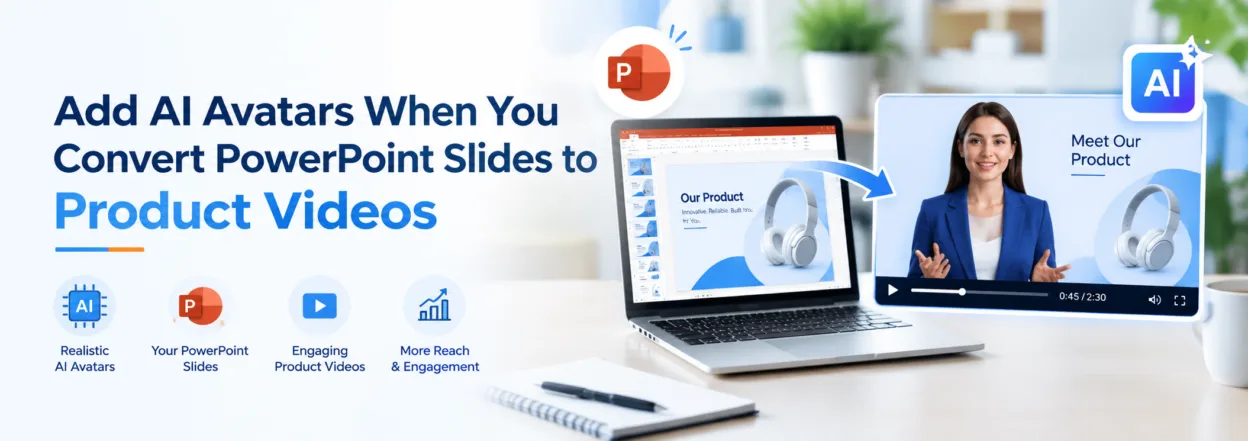
Most online stores already have the raw material for a product video sitting in a slide deck: approved photos, feature descriptions, dimensions, materials and care instructions. What the deck lacks is a presenter. Slides built for a live pitch rely on someone in the room to explain them, and a product page has no one standing beside it.
An AI avatar fills that role. Convert the deck into a video, add a digital presenter to walk shoppers through the details, and you get a product explainer without booking a studio, hiring talent or recording a single take.
This guide covers how to plan that video, prepare the slides, add the presenter and publish the result to your store.
Key Takeaways
- An existing product deck can become a presenter-led video once internal slides are removed and bullets are rewritten for speech.
- Speaker notes can become the presenter’s script, so write them as spoken sentences before you import.
- Place the avatar where it introduces and guides without covering product details.
- Slide animations don’t transfer exactly, so rebuild key movement as an editing step.
- Give each video one customer question and measure it against that question.
Why an AI Presenter Helps Product Videos
A slideshow with a voiceover can explain a product. A presenter gives the viewer someone to follow. The avatar can open with the shopper’s question, point attention to the right part of the screen, and hand off to close-up product shots when the detail matters.
That makes a presenter useful for three kinds of e-commerce video.
Product-page explainers. A shopper wants a detail the photos can’t settle, such as how the interior is arranged or how sizes compare. The presenter introduces the question, then the product fills the frame while the narration walks through the answer.
Discovery clips. For social posts, collection pages and emails, a presenter can answer “what is this, and who is it for?” in the opening seconds.
Post-purchase help. Setup, cleaning and storage instructions are easier to follow when a presenter talks the customer through each step. Link these from a confirmation email, help page or packaging QR code.
Whatever the type, keep claims tied to evidence. A presenter can explain features shown in real product photos, but performance claims such as durability or water resistance need genuine footage of the product, not generated scenes.

Prepare the Deck and Script
Start with one product and one customer question. A pilot shows how long conversion and review take before you commit the whole catalogue.
Storyboard the video. Take a hypothetical zip top travel pouch whose internal deck covers positioning, materials, interior layout, sizes, care and pricing. A product page video answering “Will my things fit?” might run like this:
| Scene | Source slide | On screen | Presenter’s role |
| 1. Question | Positioning | Presenter beside the closed pouch | Asks “Will my things fit?” |
| 2. Overview | Overview | Pouch at a three-quarter angle | One sentence on what it is and who it suits |
| 3. Interior | Interior layout | Photo of the open pouch, labels visible | Walks through each compartment, avatar off to one side |
| 4. In use | New footage | Real clip of items being packed | Narration only |
| 5. Size | Sizes | Product image with dimension labels | States the approved dimensions |
| 6. Next step | None | Pouch with size options | Points shoppers to the size selector |
The deck can’t supply scene 4. Shoot a short phone clip of the product in use, or drop the scene rather than substitute a generated animation.
Cut presentation clutter. Remove agenda slides, internal pricing, competitor comparisons, team names and closing “any questions?” slides. Give each scene one main visual and only the text needed to explain it.
Write the notes for speech. The speaker notes become the presenter’s lines, so rewrite bullets as sentences a viewer can follow. “Internal compartments” becomes “Here’s how the interior is divided, so you can see where your things would go.”
Check every fact against the live listing. An older deck may carry dimensions, materials or care steps that have since changed. Confirm you have the rights to publish every image and clip.
Convert the Deck and Add the Avatar
Once the script is approved, the conversion itself is quick. With Synthesia, you upload the .pptx and choose to import text, images, videos and shapes as editable elements, and to turn speaker notes into the video script. The app accepts files up to 1GB and 150 slides.
Review the imported scenes. Each slide becomes a scene that keeps your layout, fonts and branding. Compare every scene with the storyboard, and fix a label or swap a photo directly in the editor rather than going back to PowerPoint.
Choose the presenter. Pick from 240+ avatars and 1,000+ voices, or clone your own voice for a consistent brand sound. Match the presenter to your audience, and change it at any time without a reshoot.
Place the avatar with the product in mind. Give the presenter the opening and closing scenes, where it frames the question and the next step. On detail scenes, move it to a corner or let narration carry the scene so labels and close ups stay visible.
Rebuild key movement. Slide animations and transitions don’t transfer exactly, since each slide arrives as a static scene. Recreate any reveal that matters, such as compartments appearing one by one, with timed scenes and visual elements in the editor.
Listen before you generate. Check product names, material terms and sizes for pronunciation, and pace the narration so viewers can find each detail as it’s described. Keep the presenter’s lines factual: it should explain the product, not pose as a customer or reviewer.
Localize when you’re ready. Scripts and on screen text translate into 140+ languages with the slide layout preserved, so one approved video can serve several markets.
Publish the Video and Measure the Result
Download the MP4 for product pages. Use the downloaded file rather than a share link when adding the video to a product’s media gallery. On Shopify, product videos can run up to 10 minutes with a maximum file size of 1GB, but the customer question, not the limit, should set the length. On other platforms, check the current product media requirements before uploading.
Check the page on a phone. Choose a cover image that reads at small sizes, confirm captions display, and test playback over mobile data. Placing the video after the hero image lets shoppers start with photos and play the explainer when they need more detail.
Recompose for social. Cropping a landscape explainer to portrait can hide labels or put the presenter over the product. Rebuild the portrait version with the product above the text, larger wording, and a shorter script that still answers the question. For more placement ideas, see these tips for using video content on your e-commerce website.
Measure against the video’s job. Track one row per published version:
| Video job | Primary measure | What a weak result suggests |
| Product-page explainer | Add-to-cart or variant-selection rate | The answer arrives too late or isn’t clear |
| Discovery clip | Retention past the opening seconds | The opening question doesn’t land |
| Post-purchase help | Related support questions | A step is missing or moves too fast |
Treat comparisons as descriptive. Shoppers who choose to watch may already be more interested, and a campaign launched in the same week can move the numbers too. Change one variable per version, such as the opening scene, the presenter’s placement or the script length, and record it beside the results.
Conclusion
A product deck already holds most of what a product video needs. Adding an AI presenter turns those slides into a guided explanation shoppers can follow on a product page, in a social feed or after purchase. Plan one question per video, write the notes for speech, place the presenter so the product stays visible, and measure each version against the job it was made to do.
FAQ
Can I add an AI avatar to an existing PowerPoint?
Yes. Import the .pptx into an AI video platform, and each slide becomes a scene where you can add a presenter and a generated voice.
Will my speaker notes become the script?
They can. Choose the option to convert speaker notes into the video script, then review the result against your approved copy.
Do slide animations carry over?
Not exactly. Slides arrive as static scenes, and you recreate important movement with timed scenes and visual elements in the editor.
Can the presenter say the product is great?
Keep the lines factual. The presenter should explain features shown in the video, not claim to be a customer, tester or reviewer.