
Online shoppers want more than product images and lengthy descriptions. They want to see products in action, understand their features, and discover how items look or work before making a purchase. Product videos can help deliver this experience by presenting products in a more engaging and informative way.
Shopify merchants can use short-form videos, product reels, and interactive stories to make their storefronts more appealing. However, displaying videos alone may not be enough. Customers should also have an easy way to explore the featured products and add them to their carts.
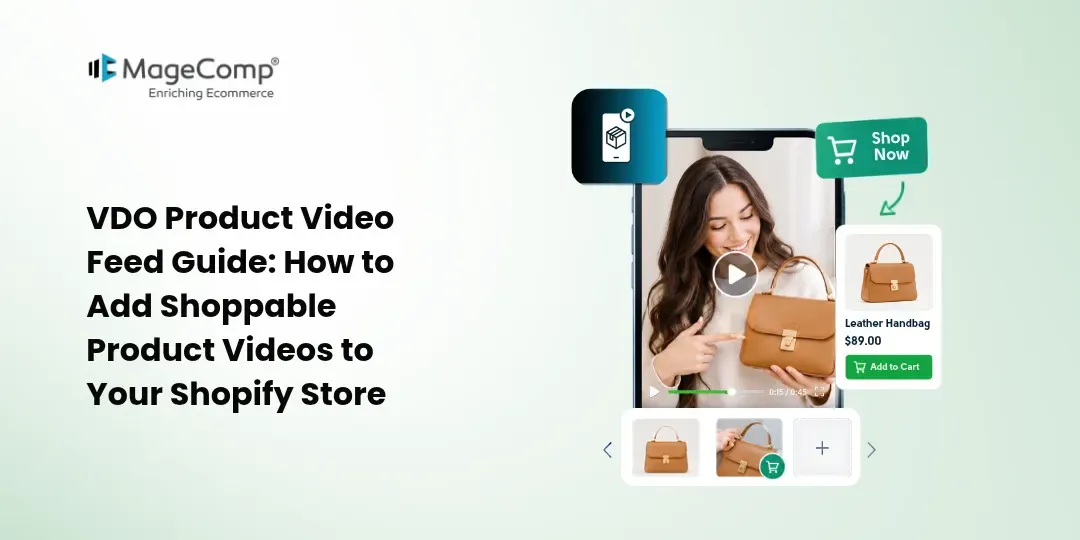
This is where VDO Product Video Feed comes in. Developed by MageComp, this Shopify app lets merchants display shoppable video feeds across their stores, tag products within videos, customize call-to-action buttons, and enable customers to add products to their carts directly from the video experience.
In this guide, we will explain how to use VDO Product Video Feed to create engaging shopping experiences on your Shopify store.

What Is VDO Product Video Feed?
VDO Product Video Feed is a Shopify app that allows merchants to display product videos in interactive formats, including video sliders, reels, and stories. Instead of relying exclusively on static product images, store owners can use videos to demonstrate product features, highlight benefits, and inspire customers to explore their catalogs.
The app also supports product tagging and shopping actions within video content, helping customers move from product discovery to purchase more conveniently.
You can use it to showcase new arrivals, demonstrate best-selling products, highlight customer-generated content, or create visual promotional sections on your storefront.
Key features include:
- Shoppable video feeds: Display engaging product videos in different layouts.
- Product tagging: Connect featured products with the relevant video content.
- Direct add-to-cart: Allow customers to add tagged products to their carts from videos.
- Custom CTA buttons: Adjust button text and styling to match your store’s branding.
- Flexible placement: Add video content to suitable storefront pages using app blocks.
- Mute and unmute controls: Let visitors control video audio.
- Customizable layouts: Choose video presentation styles that suit your storefront.
- Theme compatibility: Integrate video content with Shopify themes.
Why Should You Add Product Videos to Your Shopify Store?
Product videos can help shoppers understand what they are buying while making your storefront more interactive.
1. Demonstrate Products in Action
Product images show how an item looks, but videos can demonstrate how it works. For example, a fashion store can show how an outfit looks when worn, while a home décor store can demonstrate how an accessory fits into a room.
This additional visual context can help customers evaluate products more confidently.
2. Improve Product Discovery
A well-placed video slider or reel can introduce shoppers to products they might otherwise overlook. Merchants can use video content to feature seasonal collections, bestsellers, new launches, or complementary items.
3. Create a More Interactive Shopping Experience
Interactive videos encourage customers to explore products instead of simply scrolling through static content. Product tags and clickable CTAs provide clear next steps when a shopper becomes interested in an item.
4. Simplify the Path to Purchase
When shoppers can add products to their carts directly from a video, they may not need to navigate through several pages to begin checkout. This reduces unnecessary steps and makes product discovery more convenient.
5. Make Storefronts More Mobile-Friendly
Short-form video content works naturally with mobile browsing habits. A responsive video feed can help merchants present products in an engaging format across different screen sizes.
How to Add Shoppable Product Videos to Shopify Using VDO
Follow these steps to get started with VDO Product Video Feed.
Step 1: Install the VDO Product Video Feed App
First, open the Shopify App Store and visit the VDO Product Video Feed listing.
Install the app on your Shopify store and complete the installation process by following Shopify’s on-screen instructions.
After installation, open the app from your Shopify admin to access its available video management and customization features.
Step 2: Create Your Product Video Content
Prepare videos that demonstrate your products, highlight their benefits, or show them being used in real-life situations.
Choose content that matches your store’s products and target audience. Use clear visuals and keep the main product visible throughout the video. Short, focused clips can communicate product benefits without overwhelming viewers.
Step 3: Create Video Reels or Slides
Once your video content is ready, use the app’s video management features to create your video presentation.
Depending on your chosen layout and available configuration options, you can organize your content into video slides, reels, or other supported display formats.
Consider the purpose of each video feed before creating it. A homepage feed might feature bestsellers and new arrivals, while a product-page feed could focus on demonstrations of the item being viewed.
Give each video a clear purpose so customers can quickly understand what it offers.
Step 4: Tag Products in Your Videos
Product tagging connects video content with the products featured in it.
Product tags can help shoppers move from watching a video to exploring the featured item.
When selecting products, make sure the linked product matches the video accurately. This helps prevent confusion and creates a more consistent shopping experience.
Step 5: Customize Your Call-to-Action Buttons
A call-to-action button tells shoppers what to do next.
Depending on your objective, you might use button labels such as:
- Shop Now
- View Product
- Add to Cart
- Explore Collection
Use clear, action-oriented wording that matches the purpose of the video. You can also customize supported CTA styling, such as colors, fonts, and shapes, to complement your store’s design.
Make sure the button is easy to notice without distracting visitors from the video itself.
Step 6: Add the Video Feed to Your Shopify Theme
After preparing your video content, add the app block to the relevant storefront page.
Follow these steps:
- Open your Shopify admin.
- Navigate to Online Store → Themes.
- Click Customize for your active theme.
- Open the page or template where you want to display the video feed.
- Select Add section or Add block, depending on your theme editor’s available options.
- Find the VDO Product Video Feed app block under the Apps section and add it.
- Position the block where it fits naturally within the page layout.
- Save your changes.
You can repeat the process for other supported page templates where you want to display video content.
The exact placement options may vary depending on your Shopify theme and the app’s available blocks.
Step 7: Preview and Test the Video Feed
Before publishing your changes, preview the storefront and test the complete shopping experience.
Check the following:
- Videos load and display correctly.
- Video layouts look appropriate on desktop and mobile devices.
- Mute and unmute controls work as expected.
- Product tags lead to the correct products.
- CTA buttons perform the intended action.
- Add-to-cart functionality works correctly.
- The floating cart reflects relevant cart updates when supported by the selected setup.
- The video feed fits naturally within your storefront design.
Testing these elements helps you identify issues before customers interact with the new feature.
Conclusion
Product videos can make a Shopify storefront more engaging by demonstrating products, improving product discovery, and helping shoppers understand their options. However, the experience becomes more useful when customers can act on what they see instead of simply watching a video.
VDO Product Video Feed by MageComp helps Shopify merchants bring these elements together through shoppable video feeds, product tagging, customizable CTAs, and direct add-to-cart functionality.
Ready to make your Shopify store more engaging with shoppable videos?
Explore VDO Product Video Feed on the Shopify App Store and start building a more interactive shopping experience for your customers.

FAQ
1. How do I add product videos to my Shopify store?
Install VDO Product Video Feed from the Shopify App Store, create your video content, configure the available video and product settings, and add the app block to the relevant Shopify theme page using the theme editor.
2. Can I add shoppable videos to my Shopify product pages?
Yes. VDO Product Video Feed supports adding video content to suitable storefront locations, including product pages. You can use product tags and supported shopping actions to help customers explore featured items.
3. Can customers add products to their carts directly from videos?
Yes. The app supports direct add-to-cart functionality for tagged products, helping shoppers move from video discovery to cart creation with fewer steps.
4. Can I display video feeds on the Shopify homepage?
Yes. You can add the app block to your homepage through the Shopify theme editor when the relevant block and placement are supported by your theme setup.
5. Can I control video audio?
Yes. The app provides mute and unmute controls so visitors can choose whether to hear video audio.