
Mobile shopping has become an important part of the eCommerce experience. Customers prefer browsing products, exploring collections, and placing orders directly from their smartphones. A dedicated mobile shopping app makes this experience more convenient while helping Shopify merchants build stronger customer relationships.
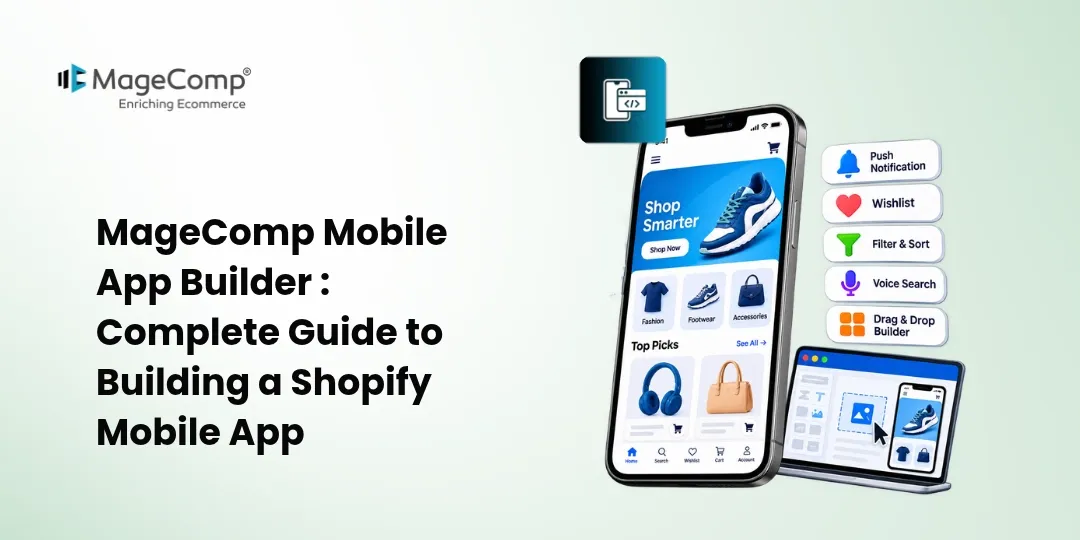
MageComp Mobile App Builder helps Shopify merchants transform their online stores into branded Android and iOS mobile applications without coding. It offers app customization, real-time store synchronization, push notifications, secure checkout, and customer engagement features to help businesses grow their mobile commerce presence.

Key Features of MageComp Mobile App Builder
- No-Code App Builder: Create a branded mobile shopping app without technical knowledge.
- Android & iOS Support: Launch mobile applications for both major mobile platforms.
- Drag-and-Drop Editor: Customize app layouts and sections with a visual editor and live preview.
- Real-Time Store Sync: Automatically synchronize products, inventory, collections, customers, and orders.
- Push Notifications: Send promotional alerts, abandoned cart reminders, and back-in-stock notifications.
- Product Reviews & Wishlist: Let customers review products and save their favourite items.
- Smart Search & Filters: Help shoppers find products using search and advanced filtering options.
- Shoppable Videos: Display engaging product videos and Instagram Reels to improve product discovery.
- Multi-Language & Multi-Currency: Support international customers with localized shopping experiences.
- Secure Checkout: Provide a smooth shopping experience with Shopify checkout integration.
How to Build a Shopify Mobile App Using MageComp Mobile App Builder?
Follow these steps to create and launch your Shopify mobile application using MageComp Mobile App Builder.
Step 1: Install MageComp Mobile App Builder
Visit the Shopify App Store and search for MageComp Mobile App Builder. Click the Install button and select your Shopify store to complete the installation. Once installed, open the app from your Shopify admin dashboard to access its configuration options.
Step 2: Customize Your Mobile App Homepage
Navigate to the app builder dashboard and open the design or customization section. Use the drag-and-drop editor to arrange homepage elements according to your store requirements. You can add promotional banners, brand sliders, product collections, featured products, and other sections.
Customize the app’s colours, themes, images, and content to maintain consistency with your Shopify store branding. Use the live preview to check how the homepage will appear to customers.
Step 3: Configure Product Pages and Shopping Features
Customize your product pages to provide customers with all the information they need before purchasing. Configure product titles, descriptions, images, product options, and recommendations.
Enable shopping features such as product reviews, wishlists, smart filters, voice search, and shoppable videos to make product discovery easier and improve the shopping experience.
Step 4: Configure Customer Login and Checkout
Set up customer account functionality to allow shoppers to access their accounts and manage their shopping activities. Configure mobile OTP login to simplify the registration and login process.
Connect the supported payment gateways and configure Shopify checkout to provide customers with a convenient and secure purchasing experience.
Step 5: Set Up Push Notifications
Navigate to the push notification section to create and manage notifications for your mobile app users. Configure promotional messages, abandoned cart reminders, back-in-stock alerts, and other automated notifications.
You can also create personalized and scheduled notifications to inform customers about new arrivals, discounts, special offers, and important store updates.
Step 6: Configure Third-Party Integrations
Open the Integration section of MageComp Mobile App Builder to connect supported third-party applications with your mobile store. First, install the required Shopify app in your store. Then, enable the respective integration from the Mobile App Builder backend and configure its settings.
Save the configuration to activate the integration and extend your mobile app’s functionality.
Step 7: Test and Publish Your Mobile App
Before launching your mobile application, test its design, navigation, product synchronization, customer login, checkout, and notification functionality.
Once everything is ready, coordinate with the MageComp team to prepare and publish your branded Android and iOS applications on Google Play Store and Apple App Store. You can publish using your own developer accounts or explore the publishing assistance offered by MageComp.
Conclusion
Having a dedicated mobile application can help Shopify businesses improve customer engagement, increase repeat purchases, and create a convenient shopping experience. MageComp Mobile App Builder makes it easier to transform your Shopify store into a branded Android and iOS application without coding.
From customizable app layouts and real-time synchronization to push notifications and seamless checkout, it provides essential tools to grow your mobile commerce business.
Ready to turn your Shopify store into a mobile shopping app? Install MageComp Mobile App Builder today and take your eCommerce business to the next level.
Frequently Asked Questions
1. Can I create an Android and iOS app using MageComp Mobile App Builder?
Yes, MageComp Mobile App Builder supports creating branded mobile applications for both Android and iOS platforms.
2. Do I need coding knowledge to build a Shopify mobile app?
No. The app offers a no-code building experience with a drag-and-drop editor and live preview, making mobile app customization easier.
3. Does MageComp Mobile App Builder automatically sync Shopify products?
Yes. The app supports real-time synchronization of products, inventory, collections, customers, and orders between your Shopify store and mobile application.
4. Can I send push notifications to mobile app users?
Yes. You can send promotional notifications, abandoned cart reminders, back-in-stock alerts, and other updates to keep customers informed and engaged.
5. Can I customize the mobile app according to my store branding?
Yes. You can customize the app’s appearance, homepage layout, banners, themes, colours, and other design elements to match your brand identity.
6. Does MageComp Mobile App Builder support multiple languages and currencies?
Yes. The app supports multi-language and multi-currency functionality to provide a localized shopping experience for international customers.