
Managing product quantities is essential for every Shopify store, especially when dealing with limited stock, wholesale orders, bulk purchases, or exclusive products. Without proper quantity restrictions, customers may order more items than intended, leading to inventory shortages and order management challenges.
LIMITER Order Limits by MageComp helps Shopify merchants control how much customers can purchase by setting minimum and maximum quantity limits, creating custom rules, and applying conditions to specific products, collections, carts, and customer groups.
In this guide, we’ll explain how to set up LIMITER Order Limits on Shopify and use its features to manage purchases according to your store’s requirements.

What Is LIMITER Order Limits?
LIMITER Order Limits is a Shopify app that allows merchants to define purchase restrictions using customizable rules and conditions. You can establish minimum and maximum quantities, control cart totals, restrict purchases based on customer tags, and apply limits to selected products or collections.
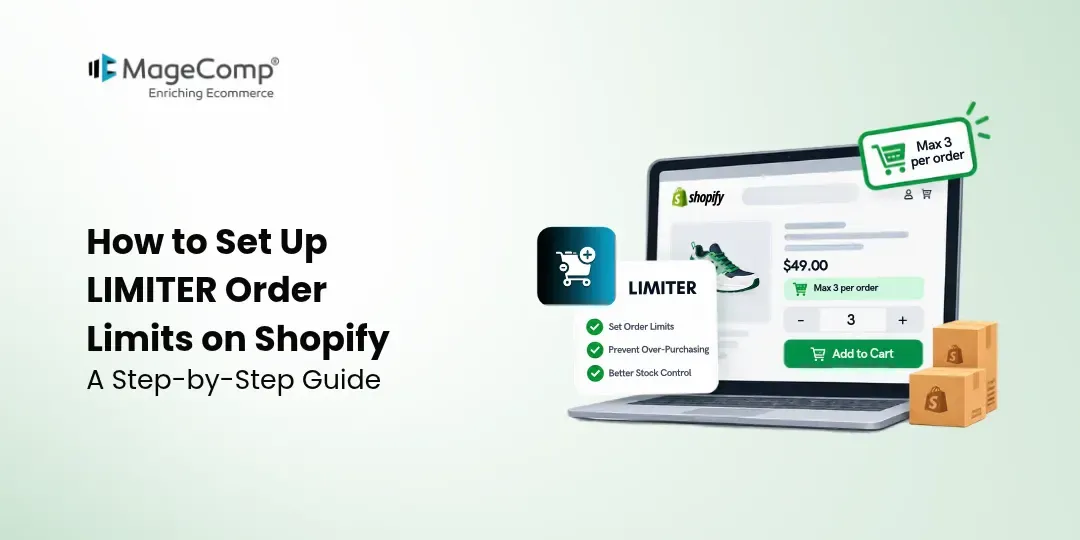
The app also supports quantity restrictions on product pages, including quantity selectors and Add to Cart functionality, helping customers understand purchase requirements before proceeding.
Key features of LIMITER Order
- Minimum and Maximum Quantity Limits: Define the permitted purchase quantity for products, variants, and carts.
- Product and Collection Rules: Apply purchase restrictions to specific products, collections, and SKUs.
- Cart-Based Restrictions: Set limits based on cart quantity, order value, or other supported criteria.
- Customer Tag Conditions: Apply different purchasing rules to wholesalers, VIP customers, or other tagged customer groups.
- Custom Conditions: Combine rules with logical conditions to control when purchase restrictions apply.
- Custom Error Messages: Display helpful notifications when customers do not meet the defined requirements.
- Ready-Made Templates: Simplify setup by using predefined templates for common quantity restrictions.
These features help merchants maintain better control over inventory and purchasing policies.
Why Should You Set Order Limits on Shopify?
Order limits help Shopify merchants maintain a balance between customer demand and inventory availability. They are particularly useful for businesses that sell products in bulk, offer wholesale pricing, or stock limited-quantity items.
Here are some common reasons to implement order restrictions.
1. Prevent Bulk Purchasing
If you sell limited-edition products or items with restricted availability, setting a maximum quantity can prevent a single customer from purchasing too many units in one order.
2. Establish Minimum Order Quantities
Wholesale businesses often require customers to purchase a minimum number of units. For example, you may want wholesale customers to order at least 10 units of a particular product.
3. Manage Inventory More Effectively
Quantity restrictions help distribute available inventory according to your business policies and reduce the risk of a few large orders consuming your available stock.
4. Apply Different Rules to Customer Groups
You may want retail customers and wholesale buyers to follow different purchasing requirements. Customer tag-based conditions allow you to configure restrictions for selected customer groups.
5. Simplify Order Management
Clear purchase requirements help customers understand your store’s policies before completing their orders, potentially reducing order adjustments and manual follow-ups.
How to Set Up LIMITER Order Limits on Shopify
Follow these steps to install and configure the app for your Shopify store.
Step 1: Install the LIMITER Order Limits App
First, visit the Shopify App Store and open the LIMITER Order Limits listing.
Install the app by following Shopify’s installation process and granting the required permissions. Once the installation is complete, open LIMITER Order Limits from your Shopify admin.
Step 2: Enable the App
After installation, you’ll be directed to the app’s home page, where you can access the quick setup option.
- Locate the Enable option.
- Click Enable to begin activating the app.
- Shopify will redirect you to your theme’s app embed settings.
- Enable the LIMITER app embed for your active theme.
- Save the changes and return to the app.
Activating the app embed allows the configured restrictions to work on your storefront as intended.
Step 3: Create a New Order Limit Rule
Once the app is enabled, you can create rules that determine how customers purchase products.
- Open LIMITER Order Limits in your Shopify admin.
- Navigate to the rules section.
- Click Add Rule.
- Choose the type of restriction you want to configure.
Depending on your business requirements, available rule types include:
- Cart limit
- Variant limit
- Each product limit
- Specific product limit
- Specific collection limit
- Price-based quantity limit
Select the appropriate rule type to proceed with the configuration.
Step 4: Configure Minimum and Maximum Quantities
After selecting a rule type, configure the required settings.
- Applied To: Select the products, variants, collections, or cart items to which the restriction should apply.
- Minimum Quantity: Enter the minimum number of units a customer must purchase, if required.
- Maximum Quantity: Enter the maximum permitted quantity, if required.
- Message: Add an error message to explain what customers need to change when their cart does not meet the rule.
Choose the quantities carefully so they match your pricing strategy, inventory availability, and purchasing policies.
Step 5: Apply Limits to Specific Products or Collections
LIMITER Order Limits lets you target restrictions according to the products in your store.
When configuring a rule, use the Applied To and grouping options to determine which products should be included or excluded.
This approach helps you apply different restrictions to different parts of your catalogue without imposing the same rule on every product.
Step 6: Add Conditions to Your Rules
Conditions allow you to control when a restriction should apply. They are useful when your store has different purchasing policies for different products, customer groups, or cart values.
To configure a condition:
- Open the rule you want to customize.
- Click Add Condition.
- Select whether the rule should apply when all configured conditions are met or when the specified conditions are not met, as supported by the app.
- Choose the relevant condition field.
- Configure the required value or product group.
- Save the rule.
Depending on the selected options, conditions can evaluate factors such as products present in the cart, customer tags, and cart subtotal.
Review the conditions carefully to ensure the rule applies to the intended customers and products.
Step 7: Customize Customer Error Messages
When a customer attempts to purchase a quantity outside your permitted range, a clear message can help them understand how to correct the issue.
Use the rule’s message field to provide a helpful explanation.
Keep messages short and specific. Customers should be able to understand the restriction and correct their cart without contacting your support team.
Step 8: Save and Test Your Rules
After configuring your restrictions, save the rules and test them on your storefront.
Use the following checklist:
- Confirm that the app embed is enabled.
- Open a product covered by your rule.
- Test a quantity below the minimum limit.
- Test a quantity within the permitted range.
- Test a quantity above the maximum limit.
- Add multiple products to the cart to check cart-based rules.
- Test customer-specific conditions using the appropriate customer account or tag.
- Confirm that the expected error messages appear.
If a rule does not work as expected, review its product selection, conditions, quantity settings, and theme activation.
Testing is particularly important when multiple rules overlap or when your store uses a customized theme.
Conclusion
Setting clear purchase restrictions is an important part of managing a Shopify store efficiently. Whether you want to prevent excessive bulk purchases, establish minimum wholesale quantities, control cart totals, or apply different rules to customer groups, LIMITER Order Limits provides flexible tools to help you manage these requirements.
By installing the app, enabling it in your theme, configuring the appropriate rules and conditions, and testing them on your storefront, you can establish purchasing guidelines that suit your business model.
Ready to manage product quantities more effectively?
Install LIMITER Order Limits on Shopify and configure your store’s purchasing rules with MageComp.

FAQ
1. Can I set minimum and maximum order quantities on Shopify?
Yes. LIMITER Order Limits allows you to configure minimum and maximum purchase quantities for supported products, variants, collections, and carts.
2. Can I apply different limits to different products?
Yes. You can create product-specific, variant-specific, SKU-based, and collection-based rules to apply different restrictions according to your store’s requirements.
3. Can I restrict purchases for specific customers?
Yes. The app supports customer tag-based conditions, which can help you apply purchasing rules to groups such as wholesalers or VIP customers.
4. Can I set limits based on cart value?
Yes. The app supports order amount-based restrictions and conditions involving cart subtotal. Configure the appropriate rule according to your purchasing policy.
5. Can customers see quantity restrictions before adding products to their cart?
The app supports quantity limits on product pages, including quantity selectors and Add to Cart functionality. This helps communicate purchase restrictions earlier in the shopping journey.