
Getting visitors to explore your Shopify store is only the first step. The next challenge is getting them to buy. Shoppers may browse multiple products, compare prices, or leave without completing their orders. This is where FOMO marketing can help.
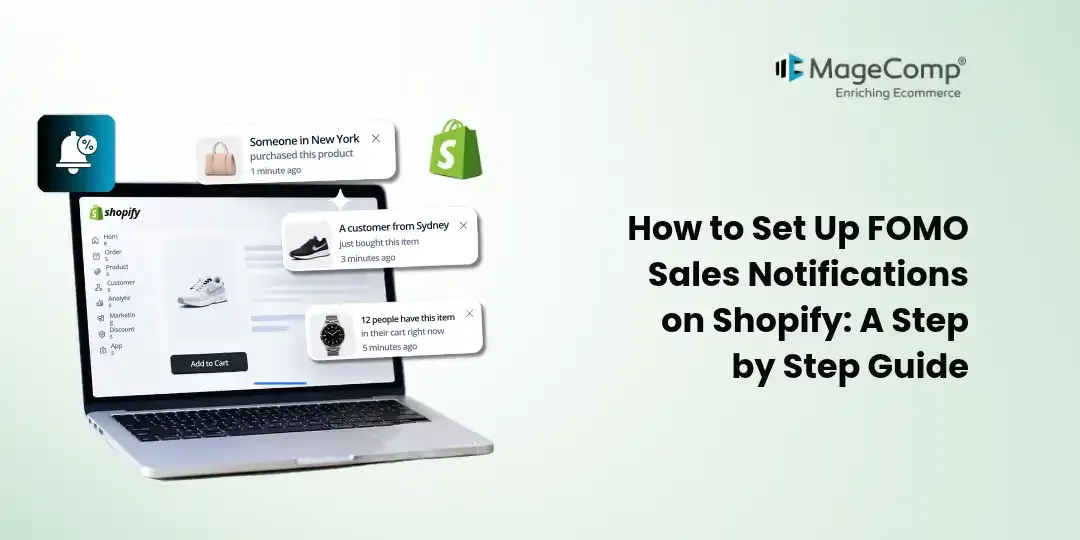
FOMO, or the fear of missing out, encourages shoppers to take action when they see relevant offers, limited-time promotions, or signs of shopping activity. With FOMO Sales Notifications, Shopify merchants can display recent sales notifications, countdown promotion banners, shipping progress bars, and announcement bars to engage visitors and highlight generous offers.
The app is developed by MageComp and allows merchants to customize notification designs, set display rules, and schedule promotions without writing code. This guide explains how to get started and use its features effectively.

What Is FOMO Sales Notifications?
FOMO Sales Notifications is a Shopify app that helps merchants communicate promotions and shopping activity through storefront notifications. Instead of relying only on product descriptions and promotional emails, you can highlight offers directly while customers browse your store.
The app includes several notification options:
- Recent Sales Notification Popups: Display recent sales information or custom notifications to create social proof.
- Countdown Promotion Banners: Highlight time-limited deals with a countdown timer.
- Shipping Progress Bars: Communicate shipping offers based on a minimum order value.
- Announcement Bars: Keep important store announcements and promotions visible.
- Customization Options: Adjust colors, text, fonts, icons, animations, layouts, and display settings to suit your store.
These features can help merchants communicate offers more clearly, create urgency around genuine promotions, and encourage customers to explore products.
Why Use FOMO Sales Notifications on Your Shopify Store?
Adding visitors to your store does not guarantee conversions. Customers may need additional information or a timely reminder before deciding to buy. FOMO Sales Notifications provides several ways to communicate that information.
1. Build Trust With Sales Notifications
Shoppers who are unfamiliar with your brand may hesitate before placing an order. Recent sales notifications can provide social proof by showing relevant purchase activity.
For example, a fashion store might display a notification about a recently purchased product. This helps visitors discover products that other shoppers are buying.
Use accurate sales information and avoid displaying fabricated purchase activity.
2. Highlight Time-Sensitive Promotions
A countdown banner can draw attention to a seasonal sale, weekend offer, or limited-duration discount. Customers can see how much time remains before a promotion ends.
This is particularly useful during Black Friday, Cyber Monday, holiday sales, and product launch campaigns.
3. Encourage Customers to Reach Free Shipping Thresholds
Shipping costs can influence the final purchase decision. A shipping progress bar can communicate how much more a customer needs to spend to qualify for a shipping offer.
For example, if free shipping applies to orders above $75, the progress bar can encourage customers with smaller carts to explore complementary products.
Always ensure the displayed threshold matches your actual shipping policy.
4. Keep Promotions Visible
Announcement bars provide a convenient way to share information such as seasonal offers, new arrivals, shipping updates, or special discounts.
Rather than requiring visitors to search for promotional details, you can make important messages visible while they browse.
5. Customize Notifications to Match Your Brand
Your notifications should feel like part of your store rather than unrelated advertisements. Customizing colors, fonts, icons, animations, and layouts helps maintain a consistent shopping experience.
How to Set Up FOMO Sales Notifications on Shopify
Follow these steps to get started with the app. Exact dashboard labels may vary depending on the app version.
Step 1: Install the App
- Open the FOMO Sales Notifications app on the Shopify App Store.
- Click the installation option and select your Shopify store.
- Review the requested permissions and approve the installation.
- Open the app from your Shopify admin.
Once installed, explore the available notification types and configuration options.
Step 2: Choose a Notification Type
Identify the type of message you want to display on your storefront.
Start with the notification that best supports your current marketing goal instead of activating every option immediately.
Step 3: Customize the Notification Content
Create a short, clear message that communicates the value to shoppers.
Keep the text concise so customers can understand the message without interrupting their shopping experience.
Step 4: Customize the Design
Adjust the notification appearance to match your Shopify theme.
Consider the following elements:
- Colors: Use your brand colors and maintain sufficient contrast.
- Typography: Choose readable fonts consistent with your storefront.
- Icons: Use relevant icons that help customers understand the message.
- Animations: Prefer subtle transitions that do not distract from shopping.
- Layout: Keep notification text and promotional details easy to scan.
Preview your design before publishing it. Check that the notification looks appropriate on both desktop and mobile devices.
Step 5: Configure Display Rules
Display rules determine when and where notifications appear. Use the available triggers and conditions to make messages relevant to the shopping experience.
Depending on the available settings, review options such as notification timing, display position, triggering conditions, and frequency.
Avoid showing multiple notifications simultaneously. Too many pop-ups can distract customers and make your store feel cluttered.
Step 6: Schedule Your Promotions
If you are planning a seasonal campaign or limited-time offer, use the available scheduling settings to coordinate notifications with your promotion.
Before activating a campaign, verify:
- The correct promotion start and end dates.
- The discount value and applicable products.
- The countdown deadline.
- The shipping offer and minimum order value.
- The message customers will see after the promotion ends.
A countdown timer should reflect a genuine deadline. Accurate promotional information helps maintain customer confidence.
Step 7: Preview and Publish
Before displaying notifications to customers, review the complete setup.
Preview each notification.
- Check text, colors, icons, and animations.
- Test the storefront on desktop and mobile.
- Confirm that links and promotional details are correct.
- Verify that notifications appear under the intended conditions.
- Publish or activate the notification using the available app controls.
Visit your storefront as a customer would and ensure the notifications complement the shopping experience.
Conclusion
FOMO marketing can help Shopify merchants communicate product popularity, highlight promotional deadlines, and make shipping incentives easier to understand. With FOMO Sales Notifications, you can bring these messages directly to your storefront through customizable sales popups, countdown banners, shipping progress bars, and announcement bars.
Start by choosing one notification that supports a clear marketing goal. Customize its design, configure suitable display rules, and test it on your storefront. By combining relevant messaging with genuine offers and a smooth shopping experience, you can make your promotions more visible without overwhelming your customers.
Ready to improve the way you communicate promotions on Shopify? Explore FOMO Sales Notifications on the Shopify App Store and discover the available options for your store.

FAQ
1. What is FOMO Sales Notifications for Shopify?
FOMO Sales Notifications is a Shopify app by MageComp that lets merchants display recent sales notifications, countdown promotion banners, shipping progress bars, and announcement bars on their storefronts.
2. Can I customize sales notifications?
Yes. The app supports customization options for colors, text, fonts, icons, animations, and display settings, helping merchants align notifications with their store design.
3. Can I use countdown banners for seasonal promotions?
Yes. Countdown promotion banners can highlight genuine time-limited offers, including seasonal campaigns and special sales. Make sure the displayed deadline matches the actual promotion period.
4. How can a shipping progress bar help my store?
A shipping progress bar can show customers how close they are to meeting a minimum order value for a shipping offer. This can encourage shoppers to consider additional products when it makes sense for their needs.
5. Do I need coding skills to configure the app?
The app is designed to let merchants customize and manage storefront notifications through its interface without coding.