
Losing your Google Play upload keystore can be a source of distress, especially when you want to publish an update for your application, because without the proper upload key, your APK or Android App Bundle (AAB) will be rejected by the Google Play Console.
Luckily, having your application enrolled in Google Play App Signing lets you reset your upload key without affecting the app signing key users depend on.
This post will help you through the entire process of resetting your Google Play Store upload key.

Steps for the Upload Key Reset Process in the Google Play Store:
Step 1: Check Your Permissions
- Sign in to Google Play Console.
- Open your application.
- Navigate to: Protected with Play → Manage Play App Signing
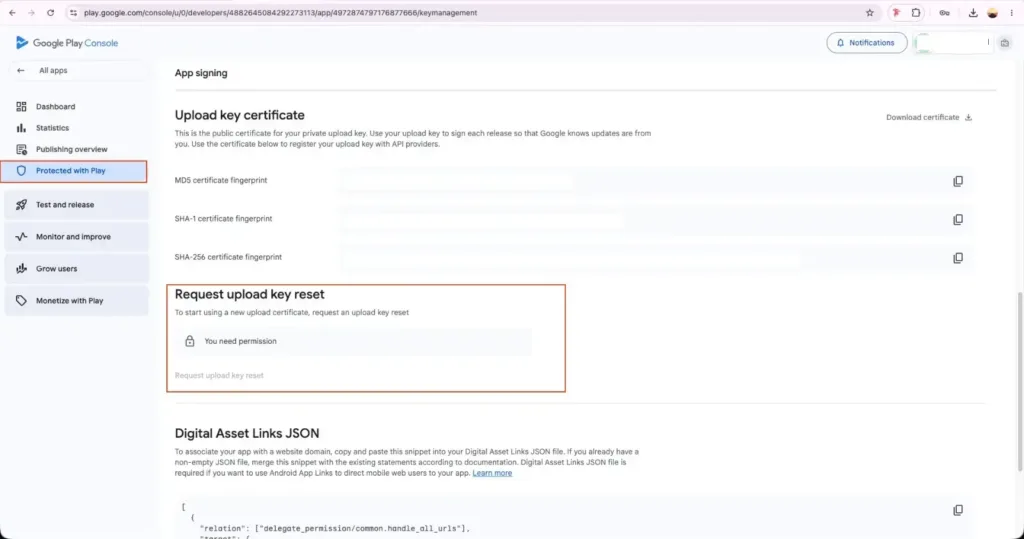
- Verify that you have permission to request an upload key reset.
- If the Request Upload Key Reset button is disabled or you see “You need permission”, ask the Account Owner or an Admin to grant you the required permission or perform the reset on your behalf.
Step 2: Generate a New Upload Key
If your upload keystore has been lost or compromised, generate a new upload keystore (.jks) and export its certificate (upload_certificate.pem).
Example commands:
Generate a new upload keystore
keytool -genkeypair -v \
-keystore upload-keystore.jks \
-alias upload \
-keyalg RSA \
-keysize 2048 \
-validity 10000
Export the upload certificate
keytool -export -rfc \
-keystore upload-keystore.jks \
-alias upload \
-file upload_certificate.pem
Step 3: Request an Upload Key Reset
In Google Play Console, go to:
Protected with Play
→ Manage Play App Signing
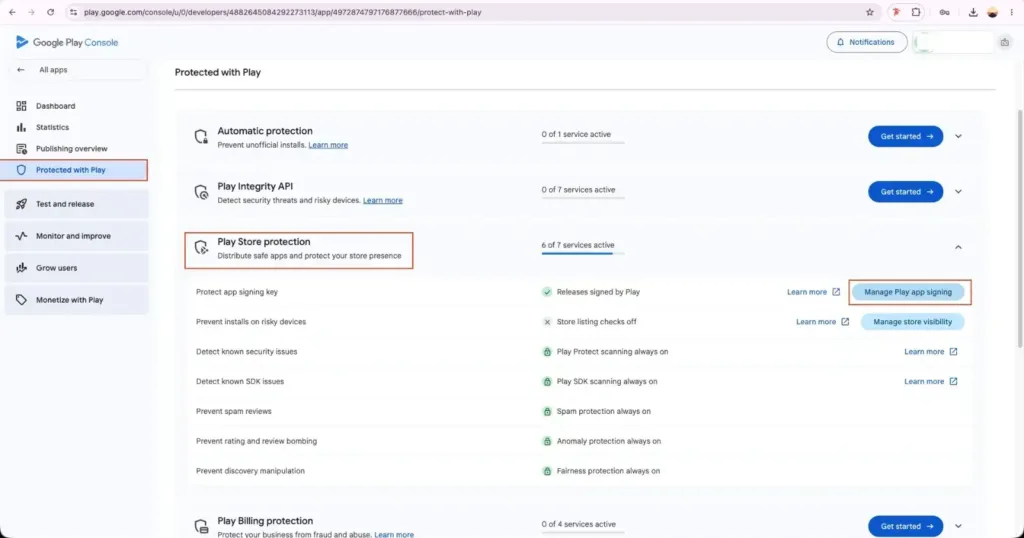
→ Request Upload Key Reset
- Click Request Upload Key Reset.
- Upload the newly generated upload_certificate.pem file.
- Submit the request.
Step 4: Wait for Google Play Store Approval
After submitting the request:
- Approval typically takes 1–2 business days.
- In some cases, approval may be granted within a few hours.
- Google will send a confirmation email once the new upload key has been approved.
Step 5: Use the New Upload Key
After approval:
- Replace your old upload keystore with the newly generated one.
- Update your project’s signing configuration (gradle.properties or build.gradle).
- Build a new AAB or APK using the new upload key.
- Upload the new release to Google Play Console.
Your future releases must be signed using the new upload key.
Conclusion
Losing your upload keystore is not a reason for you to publish a new application. Resetting your upload key becomes easy with the Google Play App Signing in place. If you have secured backups of your keystore and credentials, you can avoid interruptions in the future; this means that you will be able to keep on publishing app updates seamlessly without delays.

FAQ
1. How long does Google take to approve an upload key reset?
The request for upload key reset takes about 1 to 2 business days to get approved, although many requests are granted approvals within a few hours.
2. Will users need to reinstall the app after an upload key reset?
No. Resetting the upload key does not affect the App Signing Key, so users can continue receiving updates normally.
3. Can I continue using my old upload key after the reset?
No. Once Google approves the new upload key, all future releases must be signed with the new upload key.