
User Access Management is one of the key aspects of WordPress security and functionality. Whether it is about keeping a personal blog or establishing a multi-author blog, the right permissions help in making sure that individuals do what they need to do.
WordPress uses a role-based and capability-based access control system. The level of access is determined by the assigned user role. The WordPress access control system allows the creation of new roles, modification of existing roles, and setting of new capabilities.
In this guide, you will learn about WordPress roles, permissions, capabilities, and custom roles by using practical PHP examples, descriptions, and real-world usage examples.

Understanding Roles and Capabilities
Think of WordPress permissions like a company hierarchy:
| Company Position | WordPress Role |
| CEO | Administrator |
| Manager | Editor |
| Team Lead | Author |
| Employee | Contributor |
| Visitor | Subscriber |
Each employee has different responsibilities. Similarly:
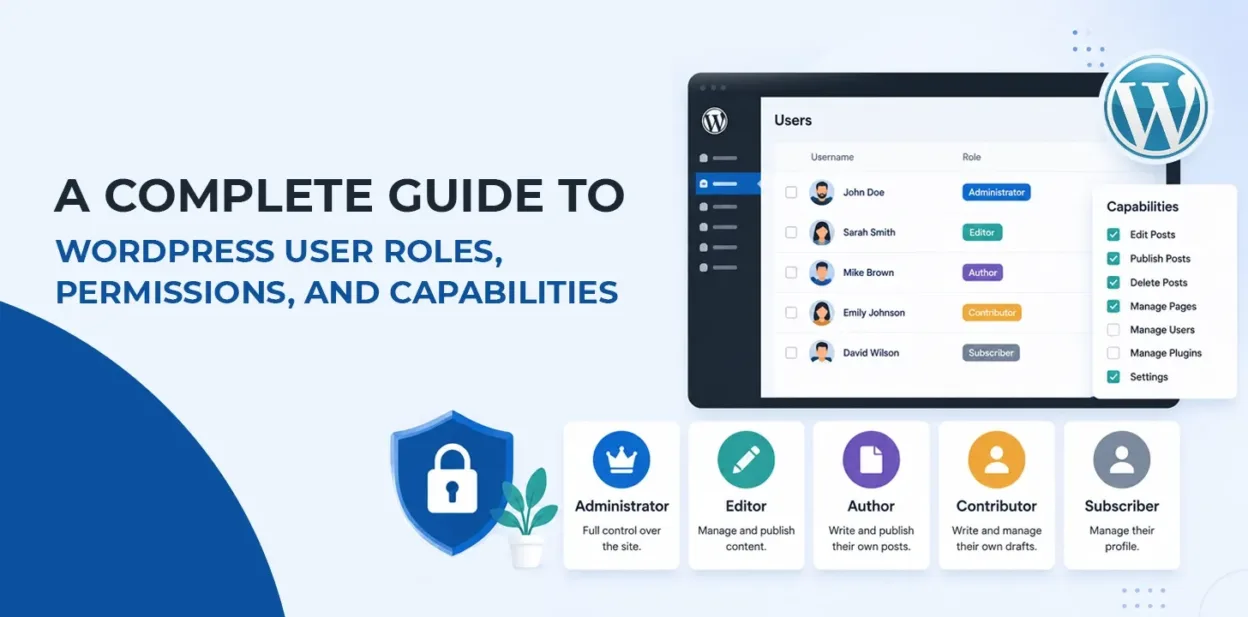
- Role = Collection of permissions.
- Capability = Individual permission.
Example: Various site functions fall under the administrator role, which includes edit_posts, delete_posts, manage_options, upload_plugins, and update_core, whereas the subscriber has only access to reading.
Default WordPress User Roles
1. Administrator
Description: Administrator is the highest authority in the website.
Permissions:
- Install plugins
- Delete plugins
- Activate themes
- Create users
- Delete users
- Manage settings
- Update WordPress
- Publish posts
- Moderate comments
Real-Life Use Case: Website owner
2. Editor
Description: An editor is the one who manages site content.
Permissions:
- Publish posts
- Edit any post
- Delete any post
- Manage comments
- Manage categories
Restrictions:
- Install plugins
- Change themes
- Manage settings
Real-Life Use Case: Content Manager
3. Author
Description: Author has control over his/her own post
Permissions:
- Publish their own posts
- Edit their own posts
- Delete their own posts
- Upload media
Restrictions:
- Edit others’ posts
- Install plugins
Real-Life Use Case: Blog Writer
4. Contributor
Description: Contributors are those who write posts but cannot publish them.
Permissions:
- Create posts
- Edit their own drafts
Restrictions:
- Publish posts
- Upload media
Real-Life Use Case: Guest Blogger
5. Subscriber
Description: Least privileged role.
Permissions:
- Login
- Update profile
- Read content
Real-Life Use Case: Membership websites
What are Capabilities?
Capabilities are individual permissions. Examples include:
- edit_posts
- publish_posts
- delete_posts
- manage_options
- edit_pages
- upload_files
- install_plugins
- activate_plugins
- edit_users
- list_users
- read
Roles are just a collection of the above capabilities.
Practical Code Examples
Example 1: Create a Custom User Role
What this example does: Creates a new user role with the “Shop manager” name and the necessary rights.
function create_shop_manager_role() {
    add_role(
        'shop_manager_custom',
        'Shop Manager',
        array(
            'read' => true,
            'edit_posts' => true,
            'publish_posts' => true,
            'upload_files' => true,
        )
    );
}
register_activation_hook(__FILE__, 'create_shop_manager_role');
Explanation:
- add_role(): Adds a new user role to WordPress.
- ‘shop_manager_custom’: Internal name of a role.
- ‘Shop Manager’: The role name that will appear on the Users screen.
- Third Parameter: Array of capabilities (‘read’ => true, ‘edit_posts’ => true, ‘publish_posts’ => true, ‘upload_files’ => true).
- register_activation_hook(): Allows executing the function only once when the plug-in is activated.
Real-Life Use Case: Marketing staff should be able to manage the blog posts but have no permission to install plugins or make changes in website settings.
Example 2: Remove a Custom Role
What this example does: Deleting a custom role that is no longer required.
function remove_shop_manager_role() {
    remove_role('shop_manager_custom');
}
Explanation: The removal of a custom role in WordPress is possible through using the remove_role() function.
Real-Life Use Case: Removing obsolete user roles when uninstalling the custom plug-in.
Example 3: Add New Capability to an Existing Role
What this example does: Allows Editors to manage plugins (for demonstration purposes).
function add_capability_to_editor() {
    $role = get_role('editor');
    if ($role) {
        $role->add_cap('install_plugins');
    }
}
Explanation:
- get_role(): Fetches the role object.
- add_cap(): Assigns a new capability to the role.
Real-Life Use Case: Grant some rights to the Editors on the internal site.
Example 4: Remove Capability
What this example does: Editors can no longer delete posts.
function remove_editor_delete_permission() {
    $role = get_role('editor');
    if ($role) {
        $role->remove_cap('delete_posts');
    }
}
Explanation: The remove_cap() function removes capabilities for a given role.
Real-Life Use Case: News websites where Editors must analyze text, but they are prohibited from deleting existing content.
Example 5: Check User Permission
What this example does: Verifies that the logged-in user can publish posts.
if (current_user_can('publish_posts')) {
    echo "User can publish posts.";
}
Explanation: current_user_can() checks whether the current user has a specific capability and not the role alone.
Real-Life Use Case: Displaying “Publish” buttons only to authorized users.
Example 6: Restrict Admin Menu
What this example does: he users that are not Administrators cannot access the Appearance menu.
function hide_theme_menu() {
    if (!current_user_can('administrator')) {
        remove_menu_page('themes.php');
    }
}
add_action('admin_menu', 'hide_theme_menu');
Explanation:
- current_user_can(): Checks the user’s permissions.
- remove_menu_page(): Hides the specified admin menu page.
- add_action(): Hooks the function into the admin menu loading process.
Real-Life Use Case: Preventing clients from changing themes or customization.
Best Practice Tip: It is always better to use capabilities (manage_options) than user roles (administrator) because capabilities provide more flexibility in role customization.
How WordPress Stores Roles
WordPress stores roles in the database under options and user metadata:
- Option Name: wp_user_roles
- User Meta Key: wp_usermeta -> wp_capabilities
- Example Values: administrator, editor, subscriber
Best Practices
- Stick to the Principle of Least Privilege, as you should only give permissions that are actually needed.
- It is necessary to always check for permissions by running the current_user_can() function.
- Use register_activation_hook() when assigning roles, and register_deactivation_hook() to revoke roles.
- Never change WordPress roles unless you really have to.
- Test any permission-related changes on separate user accounts.
- Document custom roles for future developers to understand why such roles exist.
Common Real-World Use Cases
| Website Type | Recommended Roles |
| Personal Blog | Administrator, Author |
| Company Website | Administrator, Editor |
| News Portal | Administrator, Editor, Author, Contributor |
| Membership Site | Administrator, Subscriber |
| Learning Management System (LMS) | Administrator, Instructor (Custom), Student (Custom) |
| WooCommerce Store | Administrator, Shop Manager, Customer |
Conclusion
The Role and Capability system, which is implemented on the WordPress platform, is an adaptable and secure way of administering user permissions. Instead of granting full access to all users, it is better to give them powers that they actually need. To have a clear understanding of default roles, creation of custom roles, changes in capabilities, and verification of permissions via the current_user_can() function will allow a user to create secure, versatile, and easy-to-use WordPress sites that will perform every possible function, starting from a simple blog and finishing with advanced enterprise solutions.
FAQ
1. What are user roles in WordPress?
User roles are simply collections of permissions assigned to a user to carry out actions in a website (posting, user management, editing settings, and so forth).
2. What is the difference between user roles and capabilities?
A user role incorporates all rights allocated to a user, while a capability refers to a single permission for an action such as changing posts or installing plugins.
3. Which role is the most appropriate for guest writers?
The Contributor role is accepted the most, as this kind of user is allowed to create and modify his/her posts but cannot publish them without approval.