
Running a Shopify store often involves additional costs beyond the product price. Special packaging, handling, gift wrapping, urgent delivery, custom orders, or other services may require merchants to collect an additional fee from customers.
Instead of manually adding these charges to every order, Shopify merchants can automate the process with the CHARGIFY Extra Fee app by MageComp.
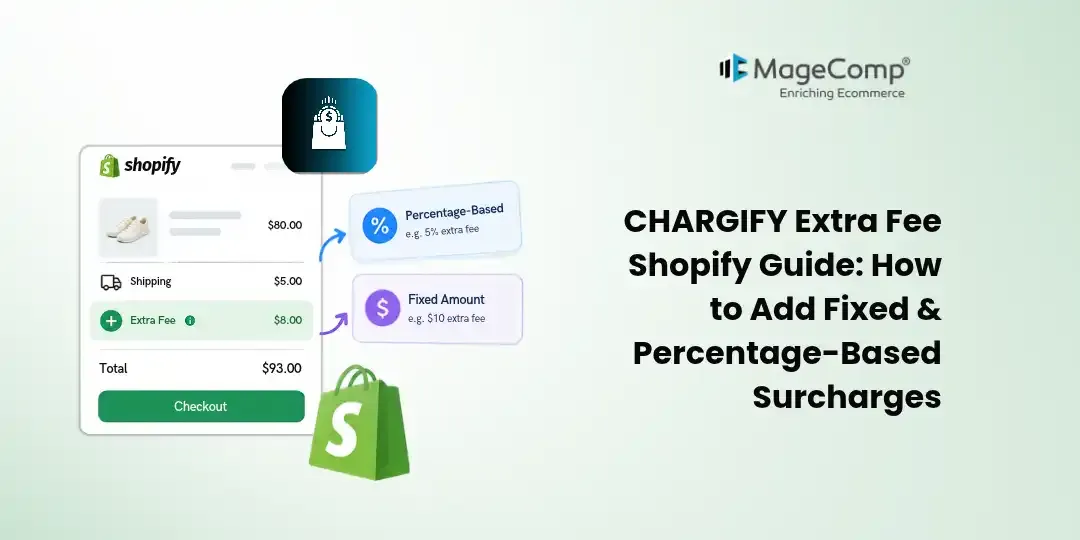
CHARGIFY Extra Fee allows store owners to add fixed or percentage-based surcharges to customer orders. Merchants can create conditions based on the order amount and display the applicable fee clearly on the storefront. The app also supports applying additional charges to selected products or collections.
In this guide, we will explain how to configure CHARGIFY Extra Fee and use it to manage additional charges in your Shopify store.

What Is CHARGIFY Extra Fee?
CHARGIFY Extra Fee is a Shopify app designed to help merchants collect additional charges from customers during the shopping and checkout process.
With the app, you can configure a surcharge as either a fixed amount or a percentage and define conditions for when the fee should be applied. The fee can be displayed to customers with a custom title and description so shoppers can understand why the additional charge is being added.
For example, a merchant could configure:
- A $5 handling fee for qualifying orders
- A 3% service charge
- A gift-wrapping fee
- A special packaging charge
- An additional delivery-related charge
- A custom-order service fee
Why Use CHARGIFY Extra Fee?
Adding additional charges manually can become difficult when your store receives a large number of orders. CHARGIFY helps automate this process by allowing merchants to create fee rules.
Some of the key benefits include:
- Create fixed or percentage-based surcharges
- Set conditions based on order amounts
- Customize the fee amount
- Add a title and description for the surcharge
- Automatically calculate applicable fees
- Apply charges to selected products
- Apply charges to selected collections
- Display additional charges clearly to customers
- Use fees for additional services and store expenses
The Shopify App Store currently lists automatic fee calculation, conditional fees, fixed or percentage fees, and customizable order and fee amounts among the app’s features.
How to Set Up CHARGIFY Extra Fee in Shopify
Step 1: Install CHARGIFY Extra Fee
Start by installing CHARGIFY Extra Fee from the Shopify App Store.
Once the app is installed, open it from your Shopify admin to access its configuration settings.
Step 2: Enable the App
After installation, open the app’s backend and enable the app.
You will also need to add the app block to your Shopify theme so that the surcharge functionality can work on your storefront.
Once the app is enabled and the app block has been added, you can begin creating your fee rules.
Step 3: Create a Surcharge
Go to the Fees Settings section.
Here, you can configure the main details of your surcharge.
Surcharge
Enter a name for the additional charge. Using a descriptive title makes it easier for customers to understand the additional cost.
For example:
Gift Wrapping Fee
or
Special Handling Fee
Type
Choose how you want to calculate the fee.
You can select:
- Percentage
- Fixed
A percentage fee changes with the applicable order amount, while a fixed fee stays the same when the condition is met.
Step 4: Set the Fee Condition
Next, select the condition that determines when the surcharge applies.
Available conditions include:
- Greater than or equal to
- Less than or equal to
- Less than
- Greater than
For example, you could create a rule such as:
Order amount ≥ $100 → Apply a 5% surcharge
This gives merchants more control over when additional charges are added.
Step 5: Enter the Fee Amount
Enter the amount you want to charge.
If you selected Percentage, enter the percentage value.
For example:
5%
If you selected Fixed, enter the amount.
For example:
$10
The app will then calculate the applicable surcharge according to your configuration.
Step 6: Set the Order Amount
Enter the order amount that should be used for the surcharge condition.
For example, suppose you want to charge a 5% service fee whenever the order subtotal reaches $100.
Your configuration could be:
- Order Amount: $100
- Condition: Greater than or equal to
- Fee Type: Percentage
- Fee Amount: 5%
When the qualifying order reaches the specified amount, the surcharge can be applied automatically.
Step 7: Add a Fee Description
Add a short explanation that customers can see during the shopping or checkout process.
For example:
“A 5% service fee is applied to orders of $100 or more.”
A clear description helps customers understand the additional cost before completing their purchase.
Final Thoughts
Additional costs are a normal part of running an ecommerce business, but managing them manually can become time-consuming. CHARGIFY Extra Fee gives Shopify merchants a flexible way to configure fixed or percentage-based surcharges and apply them according to order conditions.
Whether you need to collect fees for gift wrapping, special handling, packaging, rush processing, custom orders, or specific products, CHARGIFY can help automate the process while making the additional charge visible to shoppers.
With configurable conditions, customizable fee amounts, customer-facing descriptions, and product or collection-specific charges, merchants can build surcharge rules that fit their store’s requirements.
Ready to simplify additional charges on your Shopify store? Try CHARGIFY Extra Fee and create flexible surcharge rules for your orders.

FAQ
1. What is CHARGIFY Extra Fee for Shopify?
CHARGIFY Extra Fee is a Shopify app that lets merchants add fixed or percentage-based surcharges to orders based on configurable conditions.
2. What can Shopify merchants use CHARGIFY Extra Fee for?
Merchants can use it for handling fees, gift wrapping, special packaging, rush processing, custom orders, product-specific charges, and other additional services or costs.
3. Can I set conditions for when an extra fee is applied?
Yes. You can use order-value conditions such as greater than, less than, greater than or equal to, and less than or equal to.
4. Can I add a description for the extra fee?
Yes. You can add a customer-facing description explaining why the additional fee is being charged.
5. Can I customize the name of the extra fee?
Yes. You can provide a custom surcharge name, making it easier for customers to understand what the additional charge represents.