
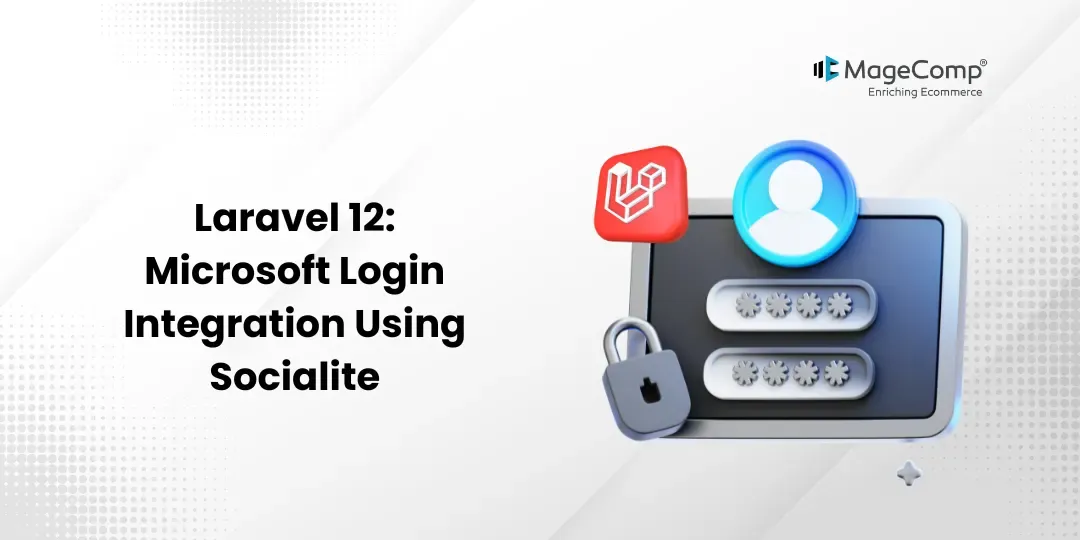
User authentication is the cornerstone of web applications today. Many developers prefer to rely solely on social logins to create a simple yet effective way for users to log in instead of developing their own login solution. One of the common ways to implement social logins in Laravel applications is to include social login through Microsoft into your application using the Socialite library.
Laravel Socialite allows you to easily and intuitively use OAuth (Open Authorization) authentication with several social media providers, including Microsoft, LinkedIn, Facebook, Twitter, and GitHub, among others. We will demonstrate how to use the Microsoft account login functionality.

Steps for Microsoft Login Integration Using Socialite in Laravel 12:
Step 1: Install Laravel 12
To start off we will first create a new Laravel 12 project. If you already have Laravel 12 installed you can skip this step. The command below will create a new project.
composer create-project laravel/laravel example-appStep 2: Install Socialite Package
In this step, we need to install the Laravel Socialite package. Socialite provides a simple way to handle OAuth authentication. Run the following command:
composer require laravel/socialiteStep 3: Create Microsoft App
Now we need to create a Microsoft Azure application to get the Client ID and Client Secret.
Follow these steps:
- Go to Azure Portal
- Navigate to Azure Active Directory → App registrations → New registration
- Enter application name (e.g., “Laravel Microsoft Login”)
- Select “Accounts in any organizational directory and personal Microsoft accounts”
- Add Redirect URI: http://localhost:8000/auth/microsoft/callback
- Click Register
- Copy the Application (client) ID
- Go to Certificates & secrets → New client secret
- Add a description and choose an expiration time
- Finally, copy the Client Secret Value (this value will not be shown again).
Step 4: Configure Microsoft Credentials
Open your .env file and add the following configuration:
MICROSOFT_CLIENT_ID=your-client-id
MICROSOFT_CLIENT_SECRET=your-client-secret
MICROSOFT_REDIRECT_URL=http://localhost:8000/auth/microsoft/callback
Now, open config/services.php and add the Microsoft configuration:
return [
     // ... other services
     'microsoft' => [
           'client_id' => env('MICROSOFT_CLIENT_ID'),
               'client_secret' => env('MICROSOFT_CLIENT_SECRET'),
            'redirect' => env('MICROSOFT_REDIRECT_URL'),
            'tenant' => env('MICROSOFT_TENANT', 'common'), // 'common', 'organizations',          'consumers', or tenant ID
    ],
 ];
Step 5: Create Migration for Users Table
We need to add additional columns to store the Microsoft ID and token.
Create a migration:
php artisan make:migration add_microsoft_fields_to_users_tableUpdate the migration file:
database/migrations/xxxx_xx_xx_add_microsoft_fields_to_users_table.php
string('microsoft_id')->nullable()->after('email');
            $table->string('microsoft_token')->nullable()->after('microsoft_id');
             $table->string('microsoft_refresh_token')->nullable()->after('microsoft_token');
         });
     }
     /**
      * Reverse the migrations.
      */
    public function down(): void
     {
         Schema::table('users', function (Blueprint $table) {
             $table->dropColumn(['microsoft_id', 'microsoft_token', 'microsoft_refresh_token']);
         });
     }
};
Run the migration:
php artisan migrateStep 6: Update User Model
Update the User model to make the password field nullable and add the new fields to $fillable:
app/Models/User.php
<?php

namespace App\Models;

use Illuminate\Database\Eloquent\Factories\HasFactory;
use Illuminate\Foundation\Auth\User as Authenticatable;
use Illuminate\Notifications\Notifiable;

class User extends Authenticatable
{
    use HasFactory, Notifiable;

    /**
     * The attributes that are mass assignable.
     *
     * @var array<int, string>
     */
    protected $fillable = [
        'name',
        'email',
        'password',
        'microsoft_id',
        'microsoft_token',
        'microsoft_refresh_token',
    ];

    /**
     * The attributes that should be hidden for serialization.
     *
     * @var array<int, string>
     */
    protected $hidden = [
        'password',
        'remember_token',
        'microsoft_token',
        'microsoft_refresh_token',
    ];

    /**
     * Get the attributes that should be cast.
     *
     * @return array<string, string>
     */
    protected function casts(): array
    {
        return [
            'email_verified_at' => 'datetime',
            'password' => 'hashed',
        ];
    }
}
Step 7: Create Controller
Create a new controller to handle Microsoft authentication:
php artisan make:controller MicrosoftControllerapp/Http/Controllers/MicrosoftController.php
    /**
     * Handle Microsoft callback.
     *
     * @return \Illuminate\Http\Response
     */
    public function handleMicrosoftCallback()
    {
        try {
            $microsoftUser = Socialite::driver('microsoft')->user();

            $user = User::where('microsoft_id', $microsoftUser->id)
                        ->orWhere('email', $microsoftUser->email)
                        ->first();

            if ($user) {
                // Update existing user
                $user->update([
                    'microsoft_id' => $microsoftUser->id,
                    'microsoft_token' => $microsoftUser->token,
                    'microsoft_refresh_token' => $microsoftUser->refreshToken,
                ]);
            } else {
                // Create new user
                $user = User::create([
                    'name' => $microsoftUser->name,
                    'email' => $microsoftUser->email,
                    'microsoft_id' => $microsoftUser->id,
                    'microsoft_token' => $microsoftUser->token,
                    'microsoft_refresh_token' => $microsoftUser->refreshToken,
                    'password' => Hash::make(uniqid()), // Generate random password
                ]);
            }

            Auth::login($user);

            return redirect()->intended('dashboard');

        } catch (Exception $e) {
            return redirect('auth/microsoft')->with('error', 'Unable to login with Microsoft. Please try again.');
        }
    }
}
Step 8: Create Routes
Add routes for Microsoft authentication in your routes/web.php file:
routes/web.php
group(function () {
    Route::get('auth/microsoft', 'redirectToMicrosoft')->name('auth.microsoft');
    Route::get('auth/microsoft/callback', 'handleMicrosoftCallback');
});

Route::get('/dashboard', function () {
    return view('dashboard');
})->middleware(['auth'])->name('dashboard');
Step 9: Create Login View
Create a simple login page with a “Login with Microsoft” button:
resources/views/welcome.blade.php
<!DOCTYPE html>
<html lang="en">
<head>
    <meta charset="UTF-8">
    <meta name="viewport" content="width=device-width, initial-scale=1.0">
    <title>Laravel 12 - Login with Microsoft</title>
    <link href="https://cdn.jsdelivr.net/npm/bootstrap@5.3.0/dist/css/bootstrap.min.css" rel="stylesheet">
    <style>
        body {
            background: linear-gradient(135deg, #667eea 0%, #764ba2 100%);
            min-height: 100vh;
            display: flex;
            align-items: center;
            justify-content: center;
        }
        .login-card {
            background: white;
            border-radius: 15px;
            padding: 40px;
            box-shadow: 0 10px 40px rgba(0,0,0,0.1);
            max-width: 400px;
            width: 100%;
        }
        .microsoft-btn {
            background-color: #00a4ef;
            color: white;
            border: none;
            padding: 12px 24px;
            border-radius: 5px;
            font-size: 16px;
            width: 100%;
            display: flex;
            align-items: center;
            justify-content: center;
            gap: 10px;
            transition: background-color 0.3s;
        }
        .microsoft-btn:hover {
            background-color: #0078d4;
            color: white;
        }
        .microsoft-icon {
            width: 24px;
            height: 24px;
        }
    </style>
</head>
<body>
    <div class="login-card">
        <h2 class="text-center mb-4">Laravel 12 Microsoft Login</h2>
        <p class="text-center text-muted mb-4">Sign in with your Microsoft account</p>

        @if(session('error'))
            <div class="alert alert-danger">
                {{ session('error') }}
            </div>
        @endif

        <a href="{{ route('auth.microsoft') }}" class="btn microsoft-btn">
            <svg class="microsoft-icon" viewBox="0 0 23 23" fill="white">
                <path d="M0 0h11v11H0z"/>
                <path d="M12 0h11v11H12z"/>
                <path d="M0 12h11v11H0z"/>
                <path d="M12 12h11v11H12z"/>
            </svg>
            Login with Microsoft
        </a>
    </div>
</body>
</html>
Step 10: Create Dashboard View
Create a simple dashboard view:
resources/views/dashboard.blade.php
<!DOCTYPE html>
<html lang="en">
<head>
    <meta charset="UTF-8">
    <meta name="viewport" content="width=device-width, initial-scale=1.0">
    <title>Dashboard</title>
    <link href="https://cdn.jsdelivr.net/npm/bootstrap@5.3.0/dist/css/bootstrap.min.css" rel="stylesheet">
</head>
<body>
    <div class="container mt-5">
        <div class="row justify-content-center">
            <div class="col-md-8">
                <div class="card">
                    <div class="card-header">
                        <h4>Dashboard</h4>
                    </div>
                    <div class="card-body">
                        <h5>Welcome, {{ Auth::user()->name }}!</h5>
                        <p><strong>Email:</strong> {{ Auth::user()->email }}</p>
                        <p><strong>Microsoft ID:</strong> {{ Auth::user()->microsoft_id }}</p>

                        <form method="POST" action="{{ route('logout') }}">
                            @csrf
                            <button type="submit" class="btn btn-danger">Logout</button>
                        </form>
                    </div>
                </div>
            </div>
        </div>
    </div>
</body>
</html>

Step 11: Add Logout Route

	Add a logout route in routes/web.php:

	use Illuminate\Support\Facades\Auth;

	Route::post('/logout', function () {
    		Auth::logout();
    		return redirect('/');
	})->name('logout');
Step 11: Add Logout Route
Add a logout route in routes/web.php:
use Illuminate\Support\Facades\Auth;

Route::post('/logout', function () {
     Auth::logout();
     return redirect('/');
})->name('logout');
Step 12: Run the Application
Now run your Laravel application:
php artisan serveVisit http://localhost:8000 and click on the “Login with Microsoft” button. You will be brought to the Microsoft login page. After logging in successfully to Microsoft, you will be redirected back to the Laravel application and logged in.
Important Notes:
Tenant Configuration: The tenant setting in config/services.php determines which Microsoft accounts can sign in.

Conclusion
We have successfully configured Microsoft Authentication for Laravel 12 using Socialite. This package allows for the simple implementation of various social authentication services. The guide explains how to implement the Microsoft Auth system into your application, from developing a Microsoft Azure app to authenticating users via OAuth 2.0, as well as securely storing User data. By allowing users to log into your application with their Microsoft account, you will simplify the login process for your users while improving their overall experience by providing additional security. The Laravel Socialite package makes it easy and flexible to integrate modern OAuth authentication into an application.
FAQ
1. What is Laravel Socialite used for?
Laravel Socialite is an easy-to-use library/framework for authenticating Users through third-party OAuth providers, including Microsoft, Google, and Facebook.
2. Does Socialite support Microsoft login by default?
Currently, no. You must install the package “socialiteproviders/microsoft” and configure Microsoft authentication with this provider separately.
3. Is Microsoft login secure?
Yes, Microsoft authentication follows the OAuth 2.0 authentication standard and uses Microsoft Azure to provide a secure sign-in mechanism.