
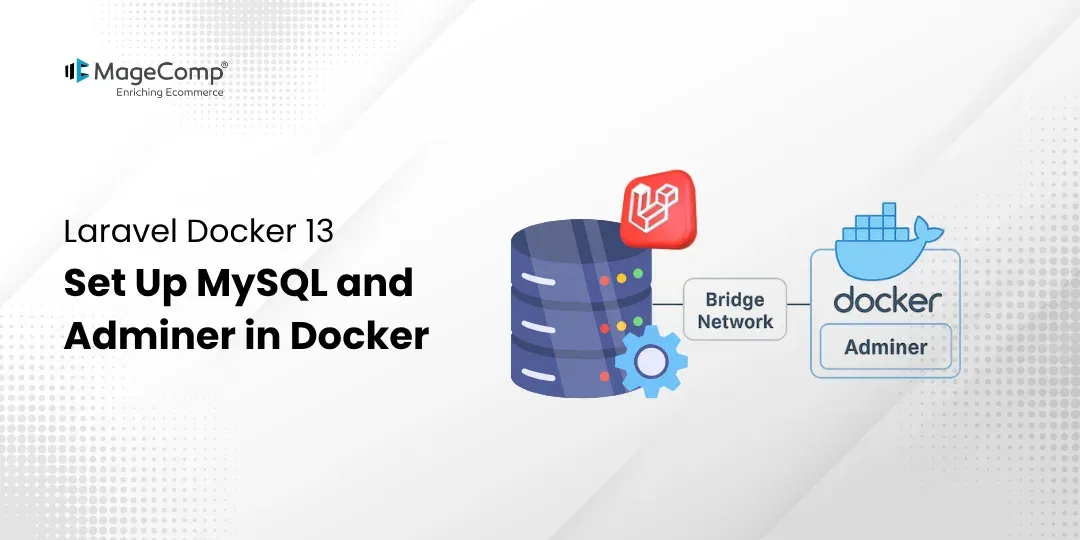
Laravel is a great PHP framework for building web applications that need databases. When you work with databases, you need a way to view and manage your data easily. Adminer is a simple tool that lets you manage your MySQL database in a web browser. It works like phpMyAdmin but is much lighter and easier to use.
Docker makes it simple to set up Laravel with MySQL and Adminer. You can view your database tables, add new data, and run SQL queries right from your web browser. This blog will show you how to install Adminer with your Laravel Docker setup. You will learn how to connect to your MySQL database and manage it easily.

Steps to Set Up MySQL and Adminer in Laravel Docker 13:
Step 1: Create a Laravel Project
First, create a new Laravel project using the following command:
laravel new my-appThis will generate a fresh Laravel application with all the necessary files.
Step 2: Create Dockerfile
Now, create a Dockerfile in your project root
FROM php:8.3-fpm

WORKDIR /var/www/html

RUN apt-get update && apt-get install -y \
    libzip-dev unzip curl supervisor nginx \
    && docker-php-ext-install zip pdo pdo_mysql

RUN curl -fsSL https://deb.nodesource.com/setup_20.x | bash - \
    && apt-get install -y nodejs \
    && npm install -g npm@latest

COPY --from=composer:latest /usr/bin/composer /usr/bin/composer

COPY . /var/www/html

RUN rm -f /etc/nginx/conf.d/default.conf /etc/nginx/sites-enabled/default

COPY ./.docker/nginx/default.conf /etc/nginx/conf.d/default.conf
COPY ./.docker/supervisord.conf /etc/supervisor/conf.d/supervisord.conf

RUN mkdir -p /var/lib/nginx && chown -R www-data:www-data /var/lib/nginx

RUN composer install
RUN npm install && npm run build

RUN echo "listen = 9000" >> /usr/local/etc/php-fpm.d/zz-docker.conf

RUN chown -R www-data:www-data /var/www/html

EXPOSE 80

CMD ["supervisord", "-c", "/etc/supervisor/conf.d/supervisord.conf"]
Step 3: Create NGINX Config File
Create this file:
.docker/nginx/default.conf

server {
    listen 80;
    index index.php index.html;
    root /var/www/html/public;

    location / {
        try_files $uri $uri/ /index.php?$query_string;
    }

    location ~ \.php$ {
        include fastcgi_params;
        fastcgi_pass web:9000;
        fastcgi_index index.php;
        fastcgi_param SCRIPT_FILENAME $realpath_root$fastcgi_script_name;
    }

    location ~ /\.ht {
        deny all;
    }
}
Step 4: Create docker-compose.yml
Now, create a docker-compose.yml file:
services:
  web:
    build:
      context: .
      dockerfile: Dockerfile
    image: laravel-app
    volumes:
      - .:/var/www/html
    ports:
      - "8080:80"
    depends_on:
      - db

  db:
    image: mysql:8.0
    environment:
      MYSQL_ROOT_PASSWORD: root
      MYSQL_DATABASE: laravel
      MYSQL_USER: laravel
      MYSQL_PASSWORD: secret
    ports:
      - "3307:3306"
    volumes:
      - dbdata:/var/lib/mysql

volumes:
  dbdata:
Step 5: Create supervisord.conf
Create this file:
.docker/supervisord.conf

[supervisord]
nodaemon=true

[program:php-fpm]
command=php-fpm
autostart=true
autorestart=true

[program:nginx]
command=nginx -g "daemon off;"
autostart=true
autorestart=true
Step 6: Download Adminer
Now download Adminer so you can easily manage your database:
curl -L https://www.adminer.org/latest.php -o public/adminer.phpThis will place Adminer inside your Laravel public folder.
Step 7: Run Docker Containers
Start your application using Docker:
docker-compose up -d --buildStep 8: Access the Laravel Application
Open your browser and visit:
http://localhost:8080
Step 9: Access Adminer
To manage your database, open:
http://localhost:8080/adminer.php
Use the following credentials:
System: MySQL
Server: db
Username: laravel
Password: secret
Database: laravel
Final Words
In conclusion, setting up MySQL and Adminer in Laravel 13 with Docker helps you simplify your development process. Now you have your Laravel application running in Docker with MySQL and Adminer, making it easier for you to manage your database directly within your web browser without having to add any extra tools or software to manage your database.

FAQ
1. What is Adminer and why should I use it?
Adminer is a small database management tool that works like phpMyAdmin. Adminer will enable you to manage MySQL databases via a very simple web-based interface.
2. Why use MySQL in Docker instead of local installation?
You will run MySQL by using Docker because it will allow you to configure your MySQL DB environment on an isolated, consistent, easily portable, and resettable environment so it does not interfere with your host operating system.