
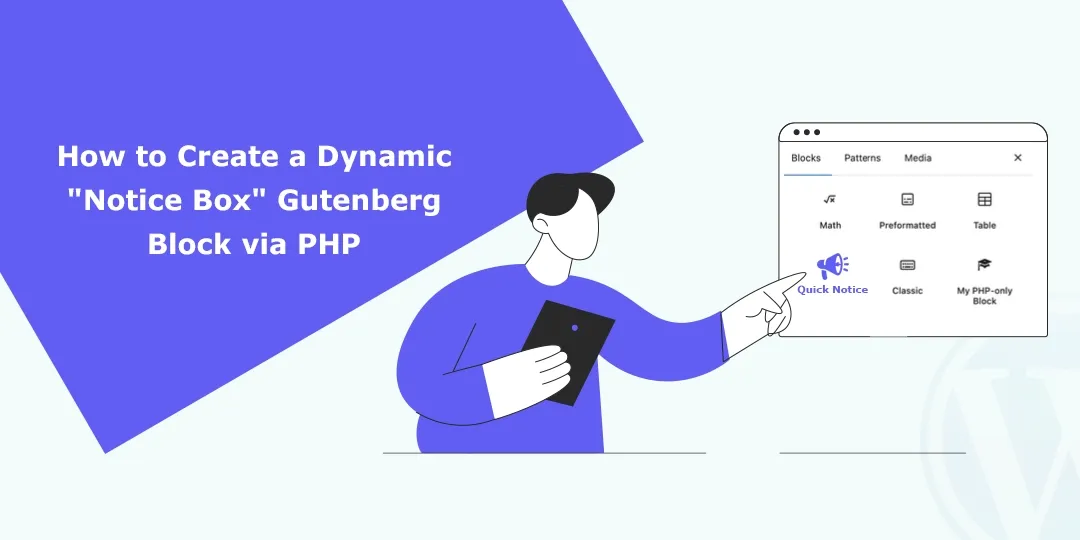
Creating custom Gutenberg blocks is one of the best ways to extend WordPress functionality. If you want a reusable, styled “Notice Box” (for alerts, tips, warnings, etc.) that renders dynamically, using PHP is the ideal approach.

This tutorial provides a step-by-step tutorial on how to create a custom Gutenberg block without having to use complicated React build tools. Through server-side rendering, you can register your block in WordPress and then have its associated HTML output defined using PHP. This is a great way for developers looking to develop a link between traditional PHP programming and the new block editor.
What This Example Does
In this example, we will:
- Register a Custom category of blocks in the Gutenberg sidebar.
- Create a ‘Notice Box’ block that users can provide input for.
- Dynamically render the block content via a PHP callback to continue getting user input as well.
This example will demonstrate the following WordPress functions:
- register_block_type()
- wp_enqueue_script()
- The attributes schema for storing block data.
Steps to Create a Dynamic “Notice Box” Gutenberg Block via PHP:
Step 1: Register the Block and its Assets
function my_custom_notice_block_init() {
    // Register the JavaScript that handles the editor UI
    wp_register_script(
        'my-notice-block-js',
        '', // We will inject the JS inline for this demo
        array('wp-blocks', 'wp-element', 'wp-editor')
    );

    // Define the Block logic in JavaScript
    $block_js = "
        const { registerBlockType } = wp.blocks;
        const { TextControl } = wp.components;
        const { useBlockProps } = wp.blockEditor;

        registerBlockType('my-plugin/notice-box', {
            apiVersion: 2,
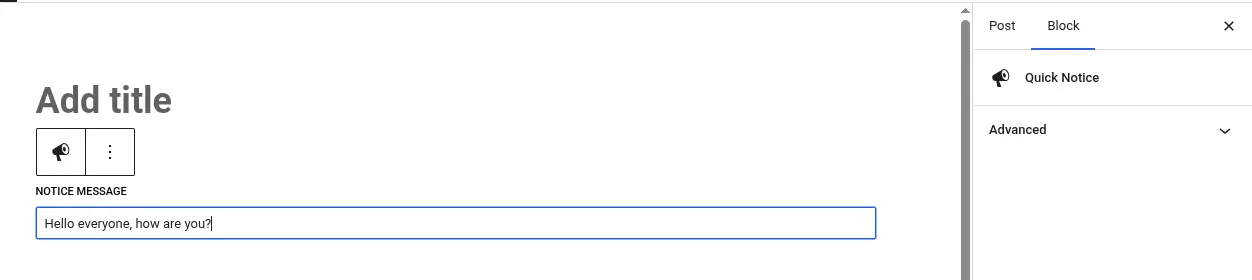
            title: 'Quick Notice',
            icon: 'megaphone',
            category: 'common',
            attributes: {
                content: { type: 'string', default: 'Enter notice text here...' }
            },
            edit: (props) => {
                const blockProps = useBlockProps();
                return wp.element.createElement('div', blockProps,
                    wp.element.createElement(TextControl, {
                        label: 'Notice Message',
                        value: props.attributes.content,
                        onChange: (val) => props.setAttributes({ content: val })
                    })
                );
            },
            save: () => null,
        });
    ";
    wp_add_inline_script('my-notice-block-js', $block_js);

    // Register the block type to WordPress
    register_block_type('my-plugin/notice-box', array(
        'editor_script' => 'my-notice-block-js',
        'render_callback' => 'render_my_notice_block'
    ));
}
add_action('init', 'my_custom_notice_block_init');
Here,
- register_block_type() – Tells WordPress that a new block exists.
- attributes – The attributes act like a database schema to store your block data.
- edit – Defines how the block looks and works inside the admin editor.
- save: () => null – Tells Gutenberg NOT to save HTML in the database, but to wait for the PHP callback.
Step 2: Create the Frontend Render Callback
function render_my_notice_block($attributes) {
    $text = esc_html($attributes['content']);

    // The HTML output that appears on your website
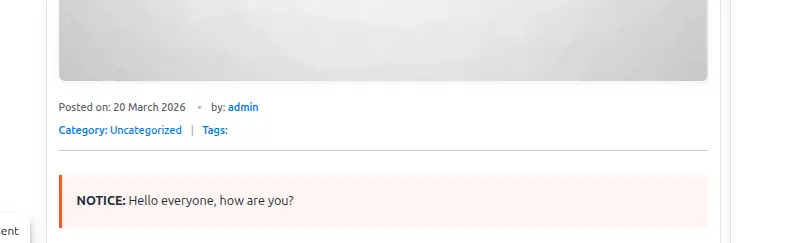
    return '<div style="padding: 20px; border-left: 5px solid #ff5722; background: #fff5f2; margin: 20px 0;">
                <strong>NOTICE:</strong> ' . $text . '
            </div>';
}
Here,
- $attributes – An array containing the data saved in the editor.
- render_my_notice_block – The function that generates the final HTML for visitors.
Output:
Admin side
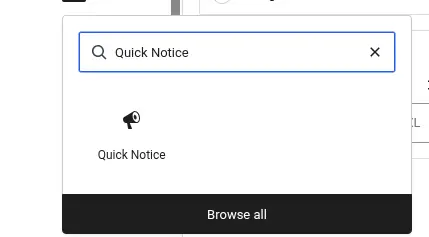
Frontend
How to Use It
- Paste the code above into your theme’s functions.php.
- Go to Posts > Add New.
- Click the (+) icon to add a new block.
- Search for “Quick Notice”.
- Type your message into the text field.
- Publish the post and view it on the frontend to see your styled notice box.
Real-Life Use Cases
This dynamic block pattern is essential for content that needs to be updated globally or styled consistently.
- Affiliate Disclaimers: Add a standard disclosure to the top of review posts.
- Alert Banners: Announcing breaking news or a limited-time offer
- Dynamic Data: Displaying live stock levels or “Time Since Posted” inside a block.
Conclusion
Creating a Notice Box Gutenberg block dynamically with PHP and the Gutenberg React-based editor will produce a more sophisticated WordPress editor for your site and allow you to create flexible and reusable UI components. By combining both technologies, you will simplify the editing process for all of your WordPress editors — the editing process will be considerably easier with dynamic blocks than it will be for PHP with the WordPress renderings.
FAQ
1. What is the difference between static and dynamic Gutenberg blocks?
A static block saves the HTML directly into the post content, whereas a dynamic block creates the content when the post runs using PHP.
2. Why should I use a dynamic block for a Notice Box?
Using a dynamic block will allow you to change the style or zone structure of any block globally, rather than having to manually moderate/edit each individual post.
3. Can I add icons to the Notice Box?
The dynamic block can be extended further by adding an icon attribute that will generate the icon you defined on both the front-end and in both its front-end and in its back-end PHP code renderings.