---
title: "How to Upload Image in Laravel?"
url: "https://magecomp.com/blog/upload-image-laravel/"
date: "2023-09-13T15:33:41+00:00"
modified: "2025-01-06T09:08:23+00:00"
author:
  name: "Bharat Desai"
  url: "https://magecomp.com"
categories:
  - "Laravel"
word_count: 922
reading_time: "5 min read"
summary: "Hello Laravel Friends,"
description: "Laravel, a popular PHP framework, makes it relatively easy to implement image uploading. Learn more"
keywords: "Laravel"
language: "en"
schema_type: "Article"
related_posts:
  - title: "Laravel: Creating a Standardized JSON Response for API"
    url: "https://magecomp.com/blog/laravel-creating-a-standardized-json-response-for-api/"
  - title: "How to Limit Login Attempts in Laravel 12?"
    url: "https://magecomp.com/blog/limit-login-attempts-laravel-12/"
  - title: "Advanced Debugging and Monitoring with Laravel Telescope"
    url: "https://magecomp.com/blog/advanced-debugging-and-monitoring-with-laravel-telescope/"
---

# How to Upload Image in Laravel?

_Published: September 13, 2023_  
_Author: Bharat Desai_  

![](https://magecomp.com/blog/wp-content/uploads/2023/09/How-to-Upload-Image-in-Laravel-1024x512.webp)

**Hello Laravel Friends,**

In this Laravel tutorial, I will explain How to Upload Image in Laravel.
Using these steps, you can upload any media file in Laravel smartly. Before starting, we need some prerequisites.
## Prerequisites:
Need to set up a Laravel project on your PC.
[![Laravel Development Services](https://magecomp.com/blog/wp-content/uploads/2024/12/Laravel-Development-Services-4.webp)](https://magecomp.com/services/laravel-development-services/)

## Steps to Upload Image in Laravel:
**Step 1: Install spatie media library**

Run the below command into your project root directory
```
$ composer require spatie/laravel-medialibrary
```

**Introduction of spatie/laravel-medialibrary:**

This package can associate all sorts of files with Eloquent models. It provides a simple, fluent API to work with.
**Step 2: Setup spatie/laravel-medialibrary**

Run the below command
```
$ php artisan vendor:publish --provider="SpatieMediaLibraryMediaLibraryServiceProvider" –tag="migrations"
```

This command publishes the migrations file and that Service provider.
```
$ php artisan migrate
```

Migrate the media table into your database.
**Step 3: Make the User route**

Add the below code in your **route/web.php**

```
use AppHttpControllersUserController;
use IlluminateSupportFacadesRoute;

Route::get('/users', [UserController::class, 'index'])->name('user.index');
Route::get('/user', [UserController::class, 'create'])->name('user.create');
Route::post('/user', [UserController::class, 'store'])->name('user.store');
```

**Step 4: Create a Controller to process the request**

```
$ php artisan make:controller UserController
```

Now navigate to the below path
**app/Http/Controllers/UserController.php**

Then add the code as follows
```
<?php

namespace AppHttpControllers;

use AppModelsUser;
use IlluminateHttpRequest;

class UserController extends Controller
{
    public function index(Request $request)
    {
        $users = User::all();
        return view('user.index', compact('users'));
    }

    public function create(Request $request)
    {
        return view('user.create');
    }

    public function store(Request $request)
    {
        $user = User::create([
            'name' => $request->name,
            "email" => $request->email,
            "password" => $request->password,
        ]);
        if($request->hasFile('avatar') && $request->file('avatar')->isValid()){
            $user->addMediaFromRequest('avatar')->toMediaCollection('avatar');
        }
        return redirect()->route('user.index');
    }
}
```

[![Hire laravel Developer](https://magecomp.com/blog/wp-content/uploads/2024/12/Hire-Laravel-Expert-Now-3.webp)](https://magecomp.com/services/hire-laravel-developer/)

**Step 5: Create a Blade file**

In your view directory, create 2 files – **create.blade.php** and **index.blade.php**

Move to the following path
**resources/views/user/index.blade.php**

Add below code-snippet
```

<html lang="{{ str_replace('_', '-', app()->getLocale()) }}">
<head>
    <meta charset="utf-8">
    <meta name="viewport" content="width=device-width, initial-scale=1">
    <title>Upload Media in Laravel</title>
    </head>
<body>
                        <a href="{{ route(&#039;user.create&#039;) }}" class="btn btn-dark" data-wpel-link="internal" target="_blank" rel="follow">Add</a>
                <table class="table">
            <thead>
                <tr>
                    <th>#</th>
                    <th>Name</th>
                    <th>Email</th>
                    <th width="30%">Avatar</th>
                </tr>
            </thead>
            <tbody>
                @foreach($users as $key=>$item)
                <tr>
                    <td>{{ ++$key }}</td>
                    <td>{{ $item->name }}</td>
                    <td>{{ $item->email }}</td>
                    <td><img src="{{$item->getFirstMediaUrl('avatar', 'thumb')}}" / width="120px"></td>
                </tr>
                @endforeach
            </tbody>
        </table>
    </body>
</html>
```

Now navigate to the following path
**resources/views/user/create.blade.php**

Then add the code as follows
```

<html lang="{{ str_replace('_', '-', app()->getLocale()) }}">

<head>
    <meta charset="utf-8">
    <meta name="viewport" content="width=device-width, initial-scale=1">
    <title>Upload Media in Laravel</title>
    </head>

<body>
                                                                                    <h4 class="card-title m-0">User Create</h4>
                        <a href="{{ route(&#039;user.index&#039;) }}" class="btn btn-outline-danger btn-sm h-auto" data-wpel-link="internal" target="_blank" rel="follow">Go Back</a>
                                                                        <form action="{{ route('user.store') }}" enctype="multipart/form-data" method="post">
                        @csrf
                                                    <label>Name</label>
                            <input type="text" name="name" class="form-control">
                                                                            <label>Email</label>
                            <input type="email" name="email" class="form-control">
                                                                            <label>Password</label>
                            <input type="password" name="password" class="form-control">
                                                                            <label>Avatar:</label>
                            <input type="file" name="avatar" class="form-control">
                                                                            <button class="btn btn-primary">Store</button>
                                            </form>
                                        </body>

</html>
```

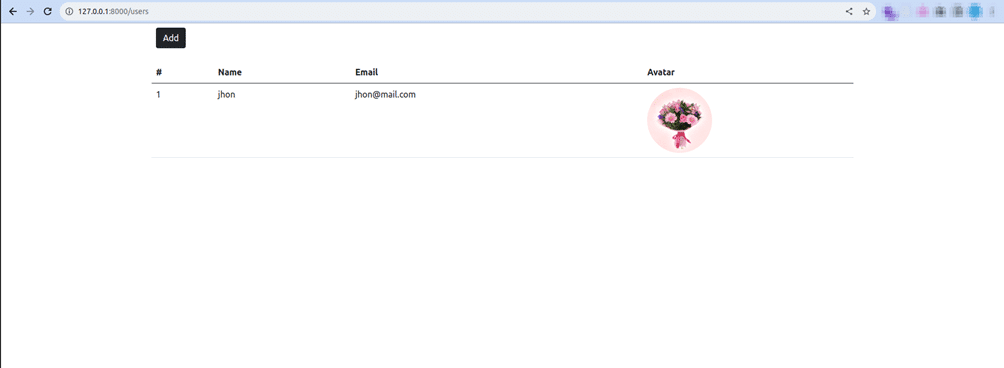
**Step 6: Now run your magic at 127.0.0.1:8000 URL**

```
$ php artisan co:ca
$ php artisan ro:ca
$ php artisan serve
```

**Output:**
![Upload Image Laravel](https://magecomp.com/blog/wp-content/uploads/2023/09/Upload-Image-Laravel.png)

## Conclusion:
That’s it! You’ve successfully implemented image uploads in a Laravel application. Users can now upload images, and you can display them as needed. If you need any further assistance, you can reach out to [**Laravel Developers**](https://magecomp.com/hire-laravel-developer.html).
[![Contact Us](https://magecomp.com/blog/wp-content/uploads/2024/12/Contact-Us-3.webp)](https://magecomp.com/contact)

**Happy Coding!**

</body></html>


---

_View the original post at: [https://magecomp.com/blog/upload-image-laravel/](https://magecomp.com/blog/upload-image-laravel/)_  
_Served as markdown by [Third Audience](https://github.com/third-audience) v3.5.3_  
_Generated: 2026-08-19 23:20:58 UTC_  
