---
title: "Magento 2: How to Add Sample CSV Download Option in System Configuration"
url: "https://magecomp.com/blog/magento-2-add-sample-csv-download-option-in-system-configuration/"
date: "2024-05-31T15:36:59+00:00"
modified: "2024-05-31T15:36:59+00:00"
author:
name: "Dhiren Vasoya"
url: "https://magecomp.com/"
categories:
- "How To"
- "Magento 2"
word_count: 457
reading_time: "3 min read"
summary: "Hello Magento Friends,"
description: "Learn how to add a sample CSV download option in Magento 2 system configuration with this comprehensive step-by-step guide."
keywords: "How To, Magento 2"
language: "en"
schema_type: "Article"
related_posts:
- title: "Increasing Sales and Engagement: A Deep Dive into Magento 2 Multiple Wishlists Extension"
url: "https://magecomp.com/blog/increase-sales-and-engagement-with-magento-2-multiple-wishlists-extension/"
- title: "How to Set the Maintenance Mode page in Magento 2?"
url: "https://magecomp.com/blog/custom-maintenance-mode-page-magento-2/"
- title: "Magento 2: How to Add a Custom Button to Open Custom Popup in Admin Grid"
url: "https://magecomp.com/blog/magento-2-add-custom-button-to-open-custom-popup-in-admin-grid/"
---
# Magento 2: How to Add Sample CSV Download Option in System Configuration
_Published: May 31, 2024_
_Author: Dhiren Vasoya_

**Hello Magento Friends,**
In Magento 2, providing sample data files can be extremely useful for users, especially when dealing with bulk uploads or configurations that require a specific format. Adding a sample CSV download option in the system configuration is a great way to guide users. It provides a template file with the correct format and headers, streamlining data import for products, customers, or other entities.
This tutorial will walk you through the steps for Adding Sample CSV Download Option in the Magento 2 System Configuration.
## Steps to Add Sample CSV Download Option in Magento 2 System Configuration:
**Step 1:** Create the **system.xml** file inside Extension etc folder.
**app\\code\\Vendor\\Extension\\etc\\adminhtml**
Then add the code as follows
```
Vendor\Extension\Block\Adminhtml\System\Config\Button
```
**Step 2:** Now, create the **Button.php** file inside the Extension Block folder.
**app\\code\\Vendor\\Extension\\Block\\Adminhtml\\System\\Config**
And add the below-mentioned code
```
_assetRepo = $assetRepo;
parent::__construct($context, $data);
}
/**
* Get the button Run
*
* @param AbstractElement $element
* @return string
*/
protected function _getElementHtml(AbstractElement $element)
{
$url = $this->_assetRepo->getUrl("Vendor_Extension::csv/sample.csv");
return '' . __('Download Sample Csv File') . '';
}
}
```
**Step 3:** Now, you need to add the **sample.csv** file inside the below path.
**app\\code\\Vendor\\Extension\\view\\adminhtml\\web\\csv**
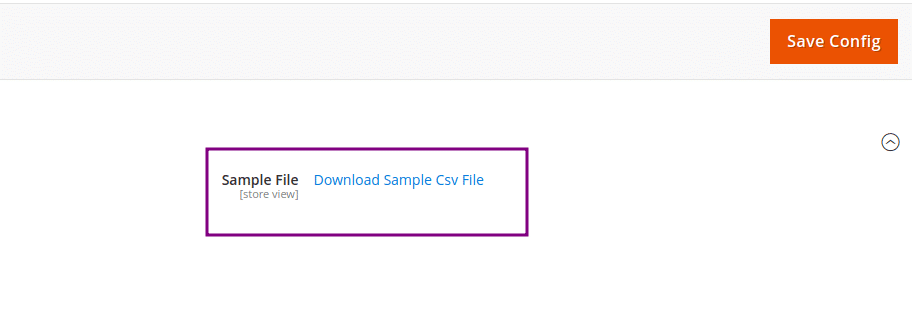
**Output:**
You have now successfully added a sample CSV download option in the Magento 2 system configuration.
## Conclusion:
You have successfully added a sample CSV download option in the Magento 2 system configuration. This feature will help users understand the required format for CSV files, reducing errors and improving user experience.
If you have any doubts, let me know through the comment section. Share the tutorial with your friends and stay updated with us.
For any customization requirement, [**Hire an Experienced Magento Developer**](https://magecomp.com/hire-magento-developer.html).
**Happy Coding!**
---
_View the original post at: [https://magecomp.com/blog/magento-2-add-sample-csv-download-option-in-system-configuration/](https://magecomp.com/blog/magento-2-add-sample-csv-download-option-in-system-configuration/)_
_Served as markdown by [Third Audience](https://github.com/third-audience) v3.5.3_
_Generated: 2026-03-10 00:49:31 UTC_