---
title: "Magento 2: How to Add Custom Tab on Admin Dashboard"
url: "https://magecomp.com/blog/magento-2-add-custom-tab-on-admin-dashboard/"
date: "2023-10-13T15:04:44+00:00"
modified: "2025-02-13T04:44:01+00:00"
author:
name: "Dhiren Vasoya"
url: "https://magecomp.com/"
categories:
- "How To"
- "Magento 2"
word_count: 640
reading_time: "4 min read"
summary: "Hello Magento Friends,"
description: "Learn How to Add Custom Tab on Admin dashboard in Magento 2."
keywords: "How To, Magento 2"
language: "en"
schema_type: "Article"
related_posts:
- title: "Magento 2: How to Create a Category using Data Patch"
url: "https://magecomp.com/blog/magento-2-create-category-using-data-patch/"
- title: "The Best Custom Magento Development Services"
url: "https://magecomp.com/blog/best-custom-magento-development-services/"
- title: "How to Add Block After Add to Cart Button in Magento 2 Product page?"
url: "https://magecomp.com/blog/add-block-add-cart-button-magento-2-product-page/"
---
# Magento 2: How to Add Custom Tab on Admin Dashboard
_Published: October 13, 2023_
_Author: Dhiren Vasoya_
**Hello Magento Friends,**
In today’s blog, we will learn How to Add Custom Tab on Admin Dashboard in Magento 2.
[](https://magecomp.com/magento-malware-removal.html)
Creating a custom tab on the admin dashboard in Magento 2 can be a useful way to display specific information or tools that are relevant to your business. Here’s a step-by-step guide on how to add a custom tab on the Magento 2 admin dashboard:
## Steps to Add Custom Tab on Admin Dashboard in Magento 2:
**Step 1:** First, we need to create a **“routes.xml”** file inside the extension at the following path.
**app\code\Vendor\Extension\etc\adminhtml\**
Then add the code as follows
```
```
**Step 2:** After that, we need to create the **“Bestvendors.php”** file inside the extension at the following path.
**app\code\Vendor\Extension\Controller\Adminhtml\Dashboard**
And add the below-mentioned code
```
_resultPageFactory = $resultPageFactory;
}
public function execute()
{
$resultPage = $this->_resultPageFactory->create();
$resultPage->getConfig()->getTitle()->prepend(__('Add Custom Tab'));
$block = $resultPage->getLayout()
->createBlock('MagentoFrameworkViewElementTemplate')
->setTemplate('Vendor_Extension::custom_file.phtml')
->toHtml();
$this->getResponse()->setBody($block);
}
}
```
[](https://magecomp.com/magento-performance-optimization.html)
**Step 3:** After that, we need to create a **“custom_file.phtml”** file inside the extension at the following path.
**app\code\Vendor\Extension\view\adminhtml\templates**
Now, add the following piece of code
```
```
**Step 4:** After that, we need to create a **“di.xml”** file inside the extension at the following path.
**app\code\Vendor\Extension\etc\adminhtml\**
Now add the code as follows
```
```
**Step 5:** After that, we need to create a **“Grids.php”** file inside the extension at the following path.
**app\code\Vendor\Extension\Block\Dashboard\**
And include the below code snippet
```
addTab(
'best_vendors',
[
'label' => __('Best Vendors'),
'url' => $this->getUrl('vendor/dashboard/bestvendors', ['_current' => true]),
'class' => 'ajax',
'active' => false
]
);
}
}
```
**Step 6:** Once all files are created in your Magento, you need to run Magento upgrade, compile and deploy commands as follows.
```
php bin/magento setup:upgrade
php bin/magento setup:static-content:deploy -f
php bin/magento setup:di:compile
php bin/magento cache:clean
php bin/magento cache:flush
```
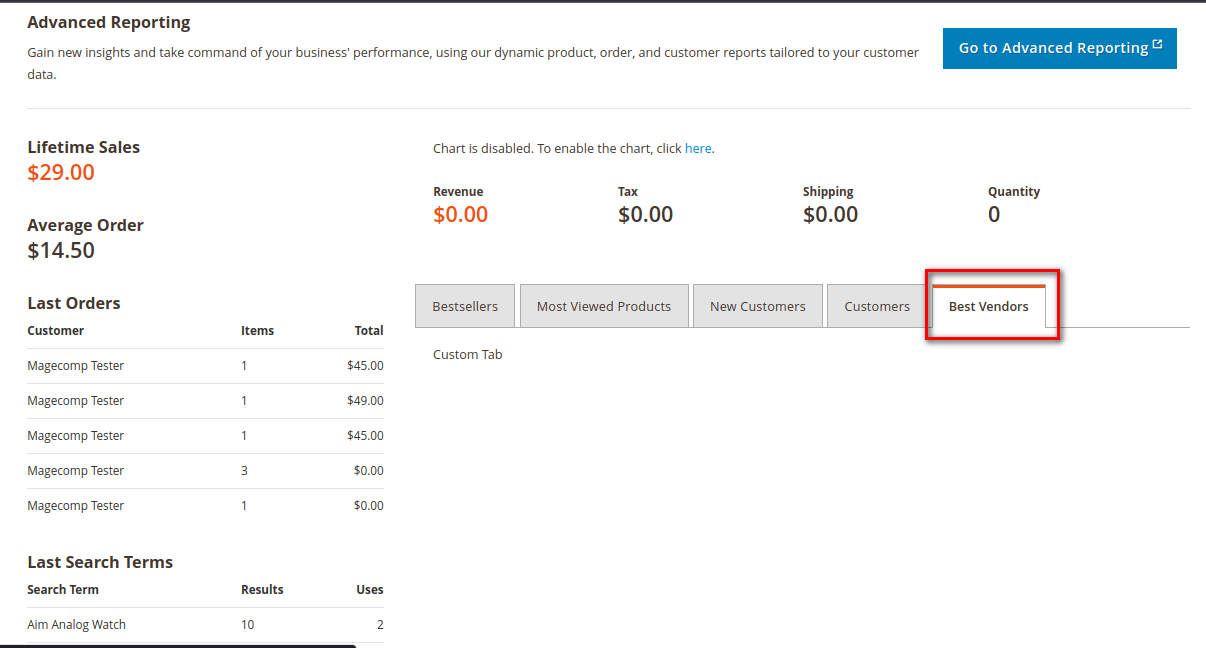
**Output:**
“Best Vendor” tab added in the Magento 2 Admin Dashboard.
## Conclusion:
Hence, this way, you can add custom tabs in the admin dashboard of your Magento 2 store.
[](https://magecomp.com/services/hyva-theme-development/)
There are other areas of your Magento 2 store where you can add a custom tab:
- [**Customer Account**](https://magecomp.com/blog/add-custom-tab-in-customer-account-in-magento-2/)
- [**Admin Sales Order View**](https://magecomp.com/blog/add-custom-tab-admin-sales-order-view-magento-2/)
- [**Admin Customer Edit Page**](https://magecomp.com/blog/create-custom-tab-admin-customer-edit-page-magento-2/)
- [**Product Page**](https://magecomp.com/blog/how-to-add-custom-tab-in-magento-2-product-page/)
If you have any doubts regarding the above steps, feel free to connect with me through the comment section. Share the tutorial with your friends if you found it useful. Stay in touch with us for more such Magento 2 tutorials.
**Happy Coding!**
---
_View the original post at: [https://magecomp.com/blog/magento-2-add-custom-tab-on-admin-dashboard/](https://magecomp.com/blog/magento-2-add-custom-tab-on-admin-dashboard/)_
_Served as markdown by [Third Audience](https://github.com/third-audience) v3.5.3_
_Generated: 2026-07-24 02:07:01 UTC_