---
title: "Magento 2: How to Add Currency Flag to Currency Switcher Dropdown"
url: "https://magecomp.com/blog/magento-2-add-currency-flag-to-currency-switcher-dropdown/"
date: "2024-08-14T19:00:40+00:00"
modified: "2025-02-12T10:29:03+00:00"
author:
name: "Dhiren Vasoya"
url: "https://magecomp.com/"
categories:
- "How To"
- "Magento 2"
word_count: 724
reading_time: "4 min read"
summary: "Hello Magento Friends,"
description: "Learn how to add currency flags to the currency switcher dropdown in Magento 2 with this step-by-step guide."
keywords: "How To, Magento 2"
language: "en"
schema_type: "Article"
related_posts:
- title: "What is Localization in Laravel and How to Use it?"
url: "https://magecomp.com/blog/laravel-localization/"
- title: "How to Convert the Custom Field from Quote item to Order item in Magento"
url: "https://magecomp.com/blog/how-to-convert-the-custom-field-from-quote-item-to-order-item-in-magento/"
- title: "Magento 1.x to Magento 2.x Migration"
url: "https://magecomp.com/blog/migrating-magento-1-x-to-magento-2-0/"
---
# Magento 2: How to Add Currency Flag to Currency Switcher Dropdown
_Published: August 14, 2024_
_Author: Dhiren Vasoya_
**Hello Magento Friends,**
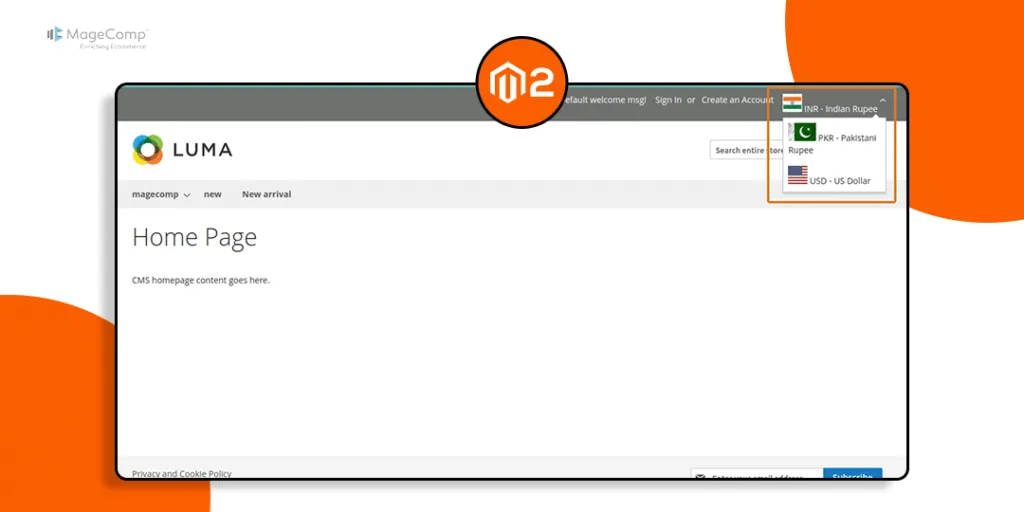
In this article, we will learn about How to Add Currency Flag to Currency Switcher Dropdown in Magento 2.
[](https://magecomp.com/magento-performance-optimization.html)
Magento 2 provides a robust platform for eCommerce businesses, allowing extensive customization to meet specific needs. One of the common customizations is enhancing the user experience by adding currency flags to the [**currency switcher**](https://magecomp.com/magento-2-geoip-currency-switcher.html) dropdown. This small yet significant tweak can improve the overall look and feel of your online store and make it easier for customers to identify and switch between currencies.
## Why Add Currency Flags?
Before diving into the technical steps, let’s understand why adding currency flags is beneficial:
- **Improved User Experience:** Visual cues like flags help users quickly recognize their preferred currency, reducing confusion and enhancing the shopping experience.- **Professional Appearance:** Adding flags gives your store a more polished and professional look.- **Global Reach:** If your store caters to an international audience, currency flags make your site more user-friendly for customers from different countries.
## Steps to Add Currency Flag to Currency Switcher Dropdown in Magento 2:
**Step 1:** First, we need to create a **“default.xml**” file inside our extension at the following path.
**app/code/Vendor/Extension/view/frontend/layout/default.xml**
Then add the code as follows
```
Magecomp_Mobilelogin::currency.phtml
```
[](https://magecomp.com/services/hyva-theme-development/)
**Step 2:** First, we need to create a **“currency.phtml”** file inside our extension at the following path.
**app/code/Vendor/Extension/view/frontend/templates/currency.phtml**
Now add the below mentioned code
```
getCurrencyCount() > 1): ?>
getCurrencies(); ?>
getCurrentCurrencyCode(); ?>
getIdModifier() ? '-' . $block->getIdModifier() : '' ?>
escapeHtmlAttr($id) ?>">
escapeHtml(__('Currency')) ?>
escapeHtmlAttr($id) ?>"
data-mage-init='{"dropdown":{}}'
data-toggle="dropdown"
data-trigger-keypress-button="true">
getCurrentCurrencyCode().'.png'; ?>
; ?>) escapeHtml($currentCurrencyCode) ?> - escapeHtml($currencies[$currentCurrencyCode]) ?>
$_name): ?>
escapeHtmlAttr($_code) ?> switcher-option">
getSwitchCurrencyPostData($_code) ?>'>
escapeHtml($_code) ?> - escapeHtml($_name) ?>
```
**Step 3:** Then you have to add the **“.png”** images to the below path
**app/code/Vendor/Extension/view/frontend/web/images/**
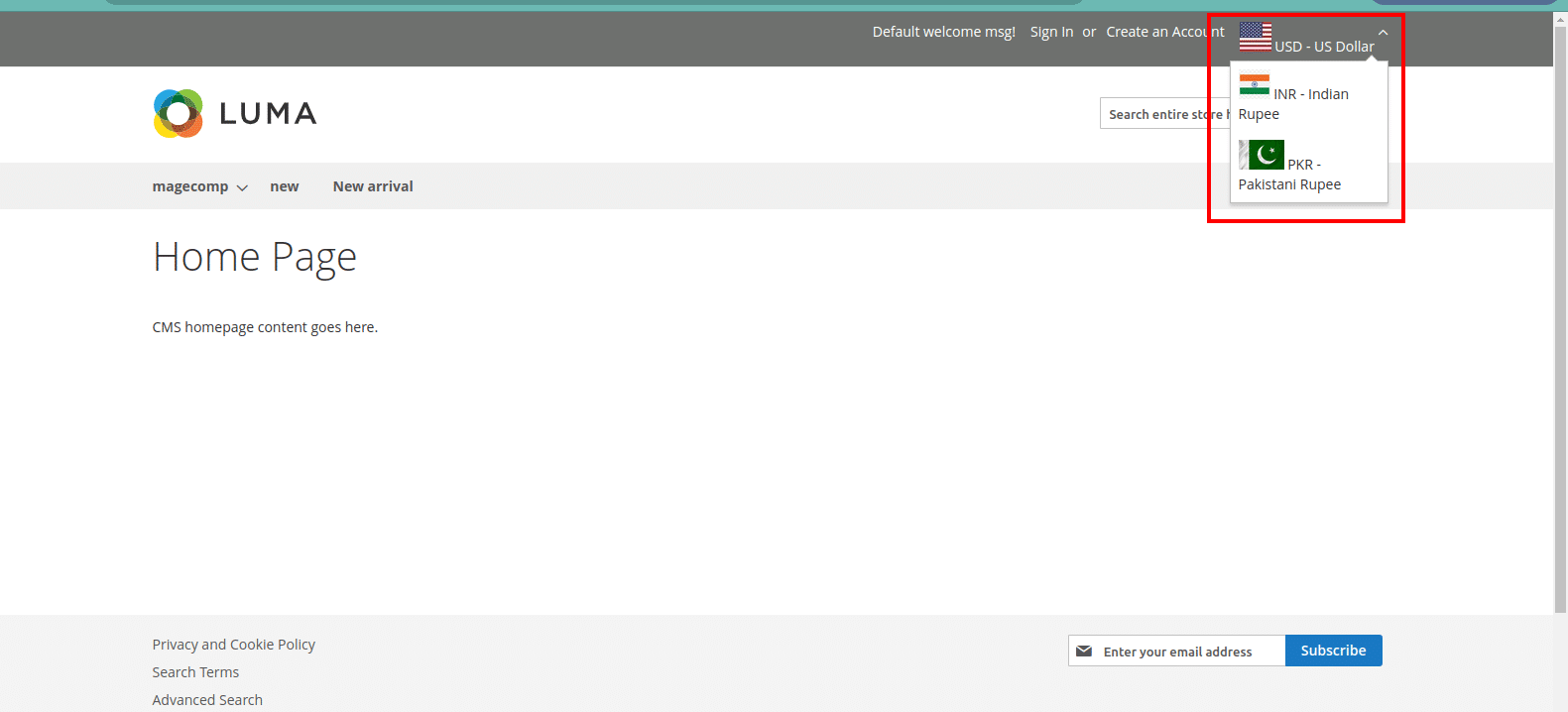
The image name should be your currency code you have two currencies in the dropdown INR and USD, so your image name should be INR.png and USD.png.
**Output:**
## Conclusion:
Adding currency flags to the currency switcher dropdown is a great way to enhance the user experience on your Magento 2 store. With the steps outlined in this blog, you can easily implement this feature and provide a more intuitive shopping experience for your customers. Customizations like these can significantly contribute to the global appeal of your eCommerce site.
[](https://magecomp.com/services/hire-magento-programmer/)
If you have any questions or need further assistance, feel free to reach out in the comments below!
**Happy Coding!**
---
_View the original post at: [https://magecomp.com/blog/magento-2-add-currency-flag-to-currency-switcher-dropdown/](https://magecomp.com/blog/magento-2-add-currency-flag-to-currency-switcher-dropdown/)_
_Served as markdown by [Third Audience](https://github.com/third-audience) v3.5.3_
_Generated: 2026-10-08 07:15:16 UTC_