---
title: "How to Create Indian GST Tax Rule in Magento 2?"
url: "https://magecomp.com/blog/create-indian-gst-tax-rule-magento-2/"
date: "2017-07-17T18:01:29+00:00"
modified: "2025-05-22T12:43:04+00:00"
author:
  name: "Dhiren Vasoya"
  url: "https://magecomp.com/"
categories:
  - "How To"
  - "Magento 2"
word_count: 694
reading_time: "4 min read"
summary: "1st July, 2017 is known as GST day as Indian government introduced “One Nation One Tax” excluding all other taxes with single GST. It is an indirect tax applicable in India replacing multiple t..."
description: "Detailed guide on creating and implementing GST rules in Magento 2. Follow the guide and make your Magento 2 stores GST ready."
keywords: "How To, Magento 2"
language: "en"
schema_type: "Article"
related_posts:
  - title: "How to Get Product Collection by Category ID in Magento 2"
    url: "https://magecomp.com/blog/get-product-collection-category-id-magento-2/"
  - title: "How to setup Tax Rules and Related configuration in Magento 2"
    url: "https://magecomp.com/blog/setup-tax-rules-related-configuration-magento-2/"
  - title: "All you need to know about Store Pickup Extension for Magento 2"
    url: "https://magecomp.com/blog/store-pickup-extension-for-magento-2/"
---

# How to Create Indian GST Tax Rule in Magento 2?

_Published: July 17, 2017_  
_Author: Dhiren Vasoya_  

![How to Create Indian GST Tax Rule in Magento 2](https://magecomp.com/blog/wp-content/uploads/2017/07/How-to-Create-Indian-GST-Tax-Rule-in-Magento-2-1024x332.webp)

1st July, 2017 is known as GST day as Indian government introduced “**One Nation One Tax**” excluding all other taxes with single [**GST**](http://www.cbec.gov.in/htdocs-cbec/gst/index). It is an indirect tax applicable in India replacing multiple taxes levied by State and Central governments. Online store owners also in a hunt to implement GST in their stores.

[![Magento version upgrade](https://magecomp.com/blog/wp-content/uploads/2025/02/Magento-2-Version-Upgrade-CTA-2.webp)](https://magecomp.com/services/magento-upgrade-services/)

Recently we provided detailed tutorial on [**creating Indian GST Tax Rule in Magento**](https://magecomp.com/blog/create-gst-tax-rule-magento/), based on the comments, feedback and users’ requests for the same blog for Magento 2, I’m here with the detailed solution on creating Indian GST Tax Rule in Magento 2.
Since the launch of Magento 2, store owners having Magento 1 stores are migrating their stores in Magento 2 to leverage new features and functionality served by the version. Being the ruling developers of Magento 2, we would like to provide you with an easy method to implement GST in your Magento 2 and make your Magento 2 stores GST ready.

If you are confused with under which tax rate slab your products fall, government has also introduced an android app to calculate GST for the products you require.

## Steps to create Indian GST Tax Rule in Magento 2

1. First of all, create a new tax rule to apply GST tax to your store products. Go to **Stores > Taxes > Tax Rules** and click on “**Add New Tax Rule**”.[![1_Create-tax-rule](https://magecomp.com/blog/wp-content/uploads/2017/07/1_Create-tax-rule.png)](https://magecomp.com/blog/wp-content/uploads/2017/07/1_Create-tax-rule.png)
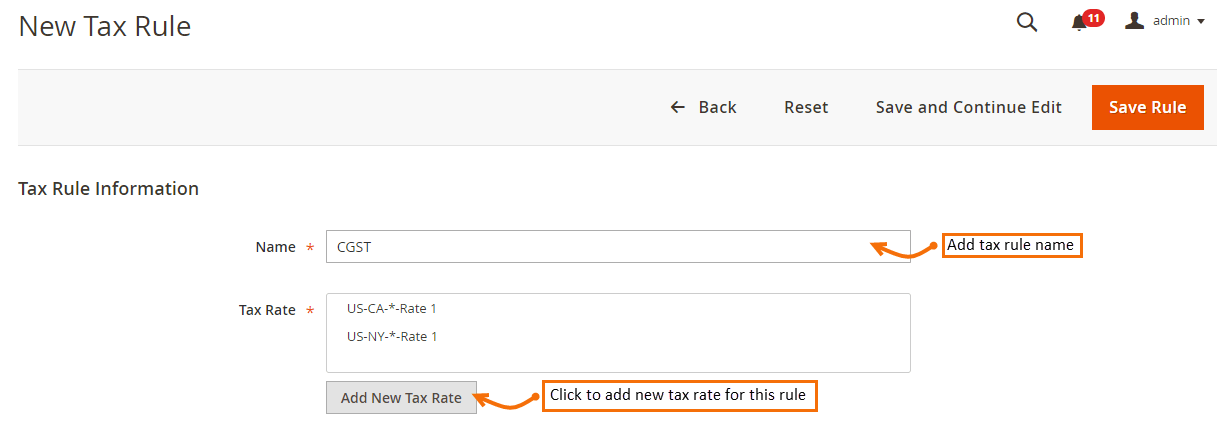
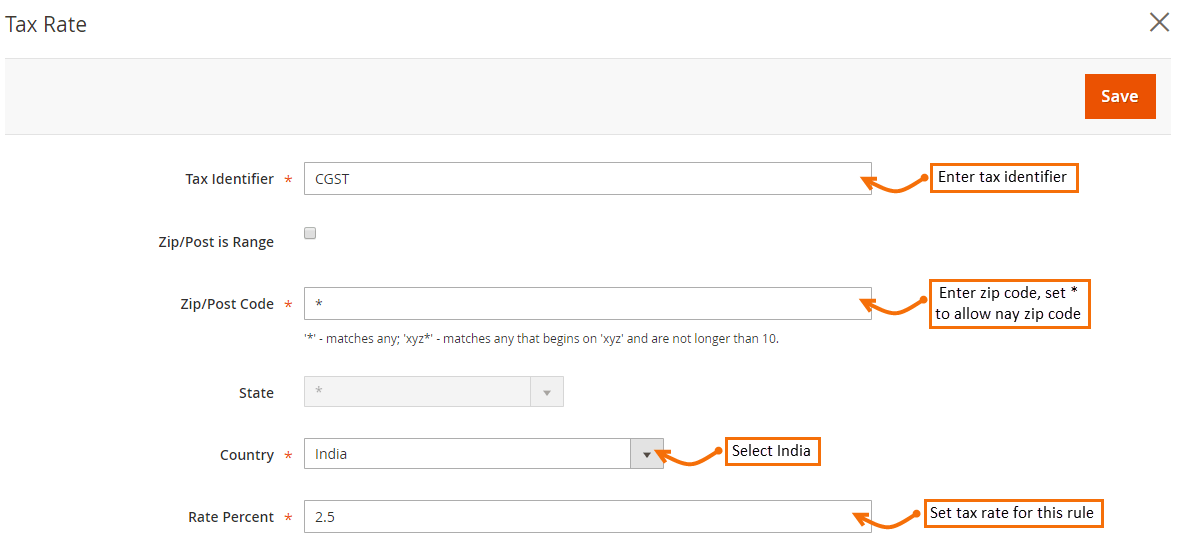
2. While creating tax rule, you need to create tax rates for both SGST and CGST. All the Indian goods (products) and services are classified under 4 tax rates, those are 5%, 12%, 18% and 28% in which you have to look at **[tax rates](http://www.cbec.gov.in/resources/htdocs-cbec/gst/chapter-wise-rate-wise-gst-schedule-18.05.2017.pdf)** to find your products fall under which category. Here, for example, we are implementing the tax rule for products fall under GST rates of 5% and thus we need to create SGST and CGST tax rules for 5%.[![2_Create-tax-rate](https://magecomp.com/blog/wp-content/uploads/2017/07/2_Create-tax-rate.png)](https://magecomp.com/blog/wp-content/uploads/2017/07/2_Create-tax-rate.png)Note that CGST and SGST are equally divided to half of the amount of tax rate. So, here as the tax rate is 5%, CGST and SGST both will be divided equally i.e 2.5%. As the government rule specification, store owners and sellers have to bifurcate CGST and SGST taxes separately in the order details and invoices for each order made in the store.
    To bifurcate GST taxes to show separately in all the order related documents, go to **Magento Root > vendor\magento\module-tax\view\frontend\web\template\checkout\summary\tax.html**
    **At line no. 46, Find Code:**```
    <!-- ko if: $index() == 0 -->
                    <td class="amount">
                        <!-- ko if: $parents[1].isCalculated() -->
                        <span class="price"
                              data-bind="text: $parents[1].formatPrice($parents[0].amount), attr: {'data-th': title, 'rowspan': $parents[0].rates.length }"></span>
    ```

    **Replace with:**

    ```
    <!-- ko if: $index() == 0 || $index() == 1 -->
                    <td class="amount">
                        <!-- ko if: $parents[1].isCalculated() -->
                        <span class="price"
                              data-bind="text: $parents[1].formatPrice(($parents[0].amount/2)), attr: {'data-th': title, 'rowspan': $parents[0].rates.length
    ```

    **Note:** Generally tax.html resides at the above path, but if you are using custom theme and have overwritten tax.html file, find it from your theme folder and replace the above code.

    [![Magento Malware Removal](https://magecomp.com/blog/wp-content/uploads/2023/04/Magento-Malware-Removal-CTA-1.webp)](https://magecomp.com/magento-malware-removal.html)
3. Now click **Additional Settings** under which you will require to create product tax class for GST. Name your tax class as GST to easily identify it while applying tax rules to products.[![3_Tax-class](https://magecomp.com/blog/wp-content/uploads/2017/07/3_Tax-class.png)](https://magecomp.com/blog/wp-content/uploads/2017/07/3_Tax-class.png)
4. Once you create and save both CGST and SGST tax rules, you can see them saved here.[![4_Saved-tax-rules](https://magecomp.com/blog/wp-content/uploads/2017/07/4_Saved-tax-rules.png)](https://magecomp.com/blog/wp-content/uploads/2017/07/4_Saved-tax-rules.png)
5. While creating tax rules, you have created tax rates for both CGST and SGST which can be seen enlisted under **Stores > Taxes > Manage Tax Zones & Rates**.[![5_Saved-tax-rates](https://magecomp.com/blog/wp-content/uploads/2017/07/5_Saved-tax-rates.png)](https://magecomp.com/blog/wp-content/uploads/2017/07/5_Saved-tax-rates.png)
6. Now go to **Products > Catalog** to assign tax classes to each products.[![6_Assign-tax-class-to-products](https://magecomp.com/blog/wp-content/uploads/2017/07/6_Assign-tax-class-to-products.png)](https://magecomp.com/blog/wp-content/uploads/2017/07/6_Assign-tax-class-to-products.png)
7. Now go to **Stores > Configuration > Sales > Tax > Shopping Cart Display Settings** where set **Yes** to “**Display Full Tax Summary**” to easily display tax summary in detail.[![7_Full-tax-display-settings](https://magecomp.com/blog/wp-content/uploads/2017/07/7_Full-tax-display-settings.png)](https://magecomp.com/blog/wp-content/uploads/2017/07/7_Full-tax-display-settings.png)
8. Once everything is set and configured properly, you can add products to cart and see GST applied on order with bifurcation of both SGST and CGST.[![8_GST-details-in-Checkout](https://magecomp.com/blog/wp-content/uploads/2017/07/8_GST-details-in-Checkout.png)](https://magecomp.com/blog/wp-content/uploads/2017/07/8_GST-details-in-Checkout.png)

[![Magento 2 Speed & Performance Optimization Services](https://magecomp.com/blog/wp-content/uploads/2025/02/Magento-2-Speed-Performance-Optimization-Services-CTA-3.webp)](https://magecomp.com/magento-performance-optimization.html)

Creating GST tax rules in Magento 2 is not a big deal. Following above steps properly will create GST rules in your Magento 2. Still if you stuck with something, let me know your query through commenting. I would be happy to help you regarding this.

[![CTA magento 2 migration service](https://magecomp.com/blog/wp-content/uploads/2016/06/CTA_magento-2-migration-service.webp)](https://magecomp.com/magento-2-indian-gst.html?utm_source=blog&utm_medium=ctabanner&utm_campaign=m2gst)CTA magento 2 migration service


---

_View the original post at: [https://magecomp.com/blog/create-indian-gst-tax-rule-magento-2/](https://magecomp.com/blog/create-indian-gst-tax-rule-magento-2/)_  
_Served as markdown by [Third Audience](https://github.com/third-audience) v3.5.3_  
_Generated: 2026-10-12 20:16:23 UTC_  
