---
title: "How to Add Image Field on CMS Page in Magento 2?"
url: "https://magecomp.com/blog/add-image-field-on-cms-page-magento-2/"
date: "2023-07-31T15:02:41+00:00"
modified: "2025-02-13T11:53:22+00:00"
author:
name: "Dhiren Vasoya"
url: "https://magecomp.com/"
categories:
- "How To"
- "Magento 2"
word_count: 732
reading_time: "4 min read"
summary: "Hello Magento Friends,"
description: "Customize the backend CMS page section of your Magento 2 store by adding an image field. Learn more"
keywords: "How To, Magento 2"
language: "en"
schema_type: "Article"
related_posts:
- title: "How to Update CMS Static Page Programmatically in Magento 2"
url: "https://magecomp.com/blog/update-cms-static-page-programmatically-magento-2/"
- title: "How to Use Local & Cookie Storage using JavaScript modules in Magento 2"
url: "https://magecomp.com/blog/use-local-cookie-storage-using-javascript-modules-in-magento-2/"
- title: "How to Add Dynamic Link to Footer in Magento 2?"
url: "https://magecomp.com/blog/add-dynamic-link-footer-magento-2/"
---
# How to Add Image Field on CMS Page in Magento 2?
_Published: July 31, 2023_
_Author: Dhiren Vasoya_
**Hello Magento Friends,**
In this blog, I will guide you through the steps to add an image field to a CMS page in Magento 2.
[](https://magecomp.com/services/hyva-theme-development/)
In Magento 2, the CMS (Content Management System) plays a vital role in managing static pages, such as homepages, about us pages, and contact pages. By default, Magento 2 provides text fields for content editing on CMS pages. However, in some cases, you might want to include images to enrich the content and provide a visually appealing experience for your customers.
Let’s look at the steps for how to add an image field on the CMS page in Magento 2.
## Steps to Add Image Field on CMS Page in Magento 2:
**Step 1:** In the first step, we need to create a **db\_schema.xml** file inside the extension at the following path.
**{{magento\_root}}/app/code/Vendor/Module/etc/db\_schema.xml**
Now add the code as follows.
```
```
**Step 2:** After that, we need to create a **cms\_page\_form.xml** to define the CMS page form with the image field File inside the extension at the following path.
**{{magento\_root}}/app/code/Vendor/Module/view/adminhtml/ui\_component/cms\_page\_form.xml**
Then include the below-mentioned code
```
```
**Step 3:** After that, we need to register the observer in the **event.xml** file in the observer File inside the extension at the following path.
**{{magento\_root}}/app/code/Vendor/Module/etc/events.xml**
And add the below piece of code
```
```
[](https://magecomp.com/services/hire-magento-programmer/)
**Step 4:** Finally, we need to Save that uploaded image in the observer File inside the extension at the following path.
**{{magento\_root}}/app/code/Vendor/Module/Observer/SaveCustomImage.php**
Now add the code as mentioned below
```
dataPersistor = $dataPersistor;
$this->uploaderFactory = $uploaderFactory;
$this->filesystem = $filesystem;
}
public function execute(\Magento\Framework\Event\Observer $observer)
{
$data = $this->dataPersistor->get('cms_page');
if (!$data) {
return;
}
$image = $data['custom_image'] ?? null;
if ($image) {
$uploader = $this->uploaderFactory->create(['fileId' => 'custom_image']);
$uploader->setAllowedExtensions(['jpg', 'jpeg', 'gif', 'png']);
$uploader->setAllowRenameFiles(true);
$uploader->setFilesDispersion(true);
$mediaDirectory = $this->filesystem->getDirectoryRead(\Magento\Framework\App\Filesystem\DirectoryList::MEDIA);
$result = $uploader->save($mediaDirectory->getAbsolutePath('custom_cms_images'));
$data['custom_image'] = 'custom_cms_images' . $result['file'];
}
$observer->getPage()->addData($data);
}
}
```
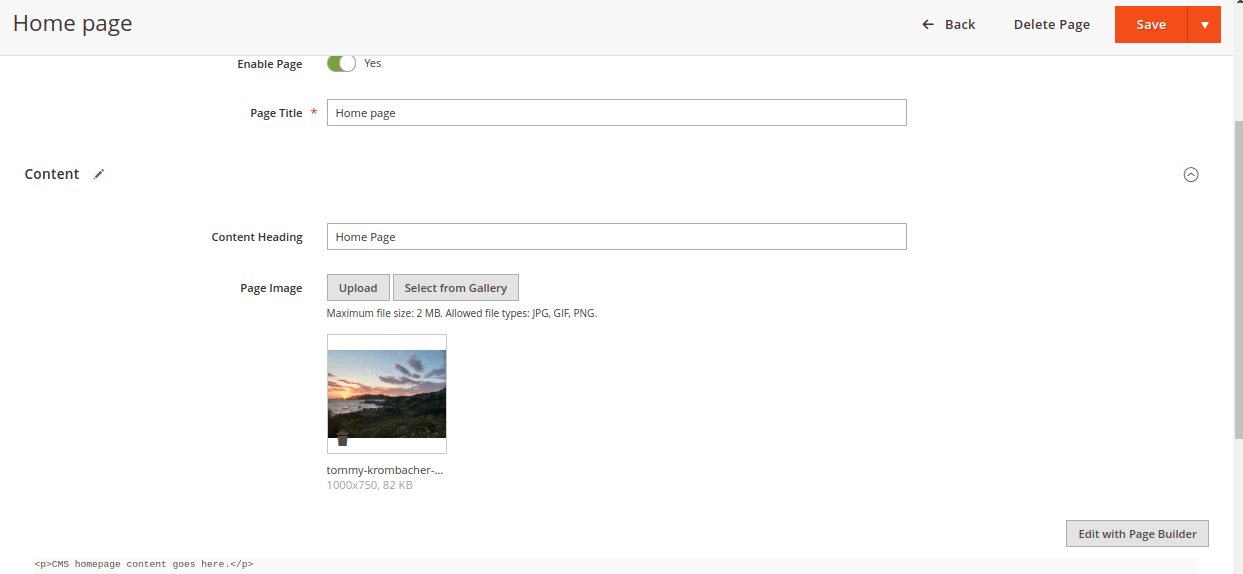
**Output:**
[](https://magecomp.com/blog/wp-content/uploads/2023/07/Image-field-on-CMS-page.png)
## Conclusion:
You have successfully added an image field to your CMS page in Magento 2. You can also [**Add Custom Button in Backend CMS Page Section in Magento 2**](https://magecomp.com/blog/magento-2-add-custom-button-in-backend-cms-page/). Share this tutorial with your friends, and stay updated with us for more such tutorials.
[](https://magecomp.com/services/magento-upgrade-services/)
**Happy Coding!**
---
_View the original post at: [https://magecomp.com/blog/add-image-field-on-cms-page-magento-2/](https://magecomp.com/blog/add-image-field-on-cms-page-magento-2/)_
_Served as markdown by [Third Audience](https://github.com/third-audience) v3.5.3_
_Generated: 2026-03-15 17:33:28 UTC_