---
title: "How to add a Custom Column to the Products Grid of Magento 2?"
url: "https://magecomp.com/blog/add-custom-column-products-grid-magento-2/"
date: "2019-04-12T17:58:00+00:00"
modified: "2025-02-22T11:07:27+00:00"
author:
name: "Dhiren Vasoya"
url: "https://magecomp.com/"
categories:
- "How To"
- "Magento 2"
word_count: 525
reading_time: "3 min read"
summary: "In Magento, grids play a vital role when it comes to displaying data in an efficient way. This kind of grid is responsible for listing database items to display in a managed way. Also, it helps to ..."
description: "Magento allows you to quickly add a column to the products grid by selecting an attribute using grid toolbar. But what if you want to display custom values t..."
keywords: "How To, Magento 2"
language: "en"
schema_type: "Article"
related_posts:
- title: "How to Hide Price for Guest Users in Magento 2"
url: "https://magecomp.com/blog/hide-price-for-guest-visitors-magento-2/"
- title: "How to Setup & Use High Performance Redis In Magento 2 Database"
url: "https://magecomp.com/blog/setup-use-high-performance-redis-magento-2-database/"
- title: "How to fix PDF Attachment Not Working Issue in Magento 2.3.3"
url: "https://magecomp.com/blog/fix-pdf-attachment-not-working-issue-in-magento-2-3-3/"
---
# How to add a Custom Column to the Products Grid of Magento 2?
_Published: April 12, 2019_
_Author: Dhiren Vasoya_
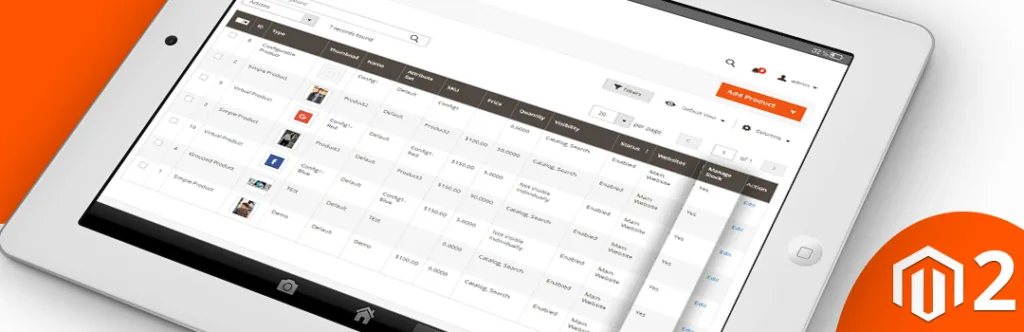
In Magento, grids play a vital role when it comes to displaying data in an efficient way. This kind of grid is responsible for listing database items to display in a managed way. Also, it helps to sort or updating data items quickly as per the requirements of the admin. There are many default grids available in Magento 2 like product grid, order grid, review grid etc. But sometimes you require to have a custom column or parameter to make things easy for you.
[](https://magecomp.com/services/hire-magento-programmer/)
Also, Magento allows you to quickly add a column to the product grid if a value that you want to display in the column is a product attribute using products grid toolbar under Columns control. Moreover, to personalized grid elements, you just check/uncheck items. But what if you want to display custom values that aren’t available as a product attribute you need to manually code for it.
Here is a small piece of code to do the same.
Firstly, create **product_listing.xml** file at this location.
**app\code\Vendor\Extension\view\adminhtml\ui_component**
```
trueselectselectfalse
```
After that we need to override ProductDataProvider by creating **di.xml** file in below folder.
**app\code\Vendor\Extension\etc\adminhtml**
```
VendorExtensionUiDataProviderProductAddstockstatus
```
[](https://magecomp.com/magento-malware-removal.html)
Next, we need to create **Addstockstatus.php** file inside below folder along with this bottom code.
**app\code\Vendor\Extension\Ui\DataProvider\Product**
```
joinField('manage_stock', 'cataloginventory_stock_item', 'manage_stock', 'product_id=entity_id', null, 'left');
}
}
```
Lastly, don’t forget to clean cache using below command
```
php bin/magento cache:clean
```
That’s it! Now you can see a new column added to grid from your Magento 2 backend. Also, you are free to play and manipulate this according to your need for adding one or more elements to the grid.
Let us know if you are facing an issue while implementing using this code by commenting below.
[](https://magecomp.com/magento-performance-optimization.html)
Happy Coding!
---
_View the original post at: [https://magecomp.com/blog/add-custom-column-products-grid-magento-2/](https://magecomp.com/blog/add-custom-column-products-grid-magento-2/)_
_Served as markdown by [Third Audience](https://github.com/third-audience) v3.5.3_
_Generated: 2026-08-02 21:54:49 UTC_